
Get started with PriceLabs now!
Want to learn what PriceLabs can do for you? See for yourself with a free trial. Get started now!
Double bookings are when two or more overlapping bookings are made for a property for the same day. In such a situation, the host needs to cancel bookings, which can affect the property ratings. It usually happens when you have listed your property on multiple platforms, such as Airbnb, Vrbo, and Booking.com, which is a common practice if you are to maximize your occupancy and revenue.
It is important to connect your calendars from both the booking platforms i.e., Airbnb and Vrbo, to sync your bookings. It will help you avoid double bookings. This is a key aspect of channel management. Calendar syncing is just one piece of running things smoothly — see our complete guide to vacation rental automation for the rest.
Both Airbnb and Vrbo (Homeaway) utilize the same iCal calendar format. They can be easily synced with each other and with other calendars, for example, your Google calendar.
Connecting your Airbnb and Vrbo calendars manually is a straightforward process, but it requires a few steps on each platform. Here’s how to do it:
1. In your Airbnb.com account, go to Host, select Listing, and navigate to the desired listing.
2. On the right panel, locate the pricing and availability settings.
3. Click on “Pricing and Availability” and then select “Calendar sync”.

4. Name the calendar you want to import.
5. Choose “Export calendar”.
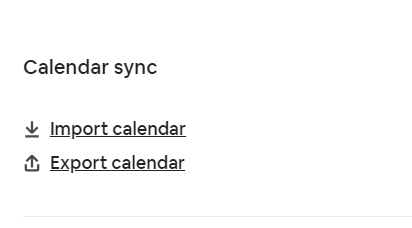
6. In the Export calendar window, copy the link.
7. In your Vrbo.com (or Homeaway) account, select the property you want to edit
8. Click Calendar in the left navigation menu, then click on ‘Import and Export.´
9. Click on ‘Import a calendar’ and paste the URL copied from the Airbnb calendar into the calendar address field. Ensure that the URL ends with “.ICS” (iCal links). Make sure you’re choosing to Block the calendar below.
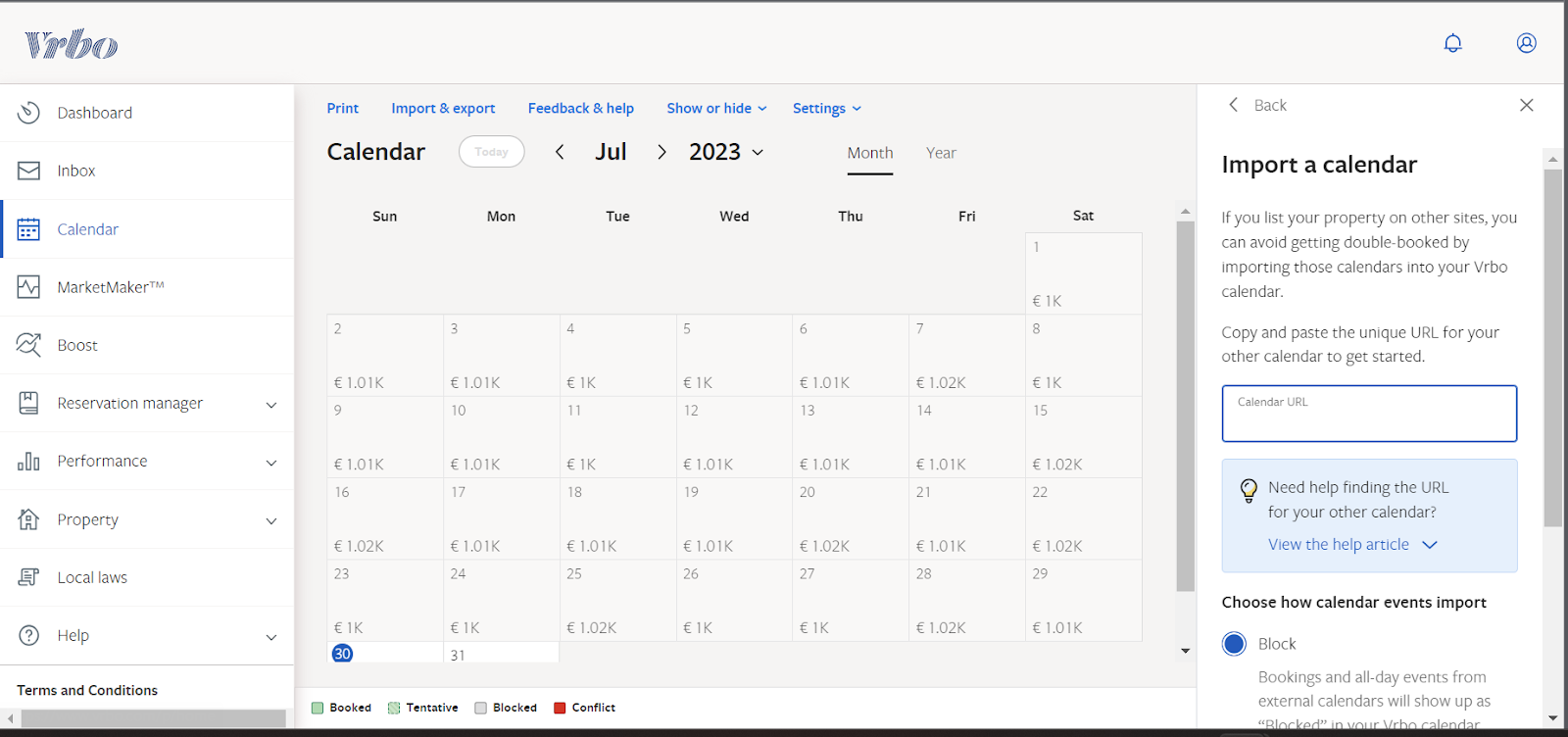
10. Provide a name and a color for the calendar you are importing.
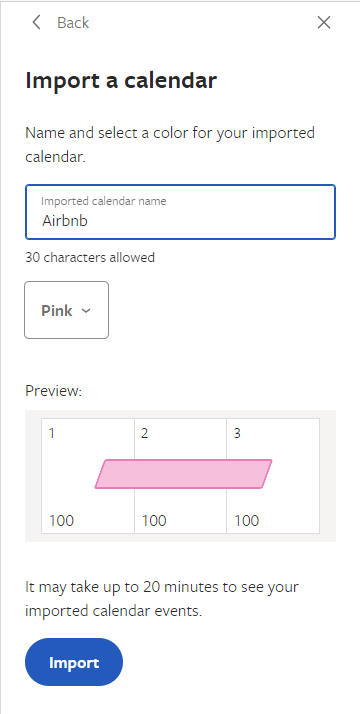
11. Finally, click on “Import” to complete the process.
Your Vrbo calendar will now pull in bookings from Airbnb. We need to do the same thing, but in reverse, to have Airbnb pull in your Vrbo bookings.
Bonus Read: Airbnb Automation: Ways To Put Your Business on Autopilot
1. Select the property you want to sync in your Vrbo.com (or Homeaway) account.
2. Click Calendar in the left navigation menu.
3. Click the import and export button, and click Export.
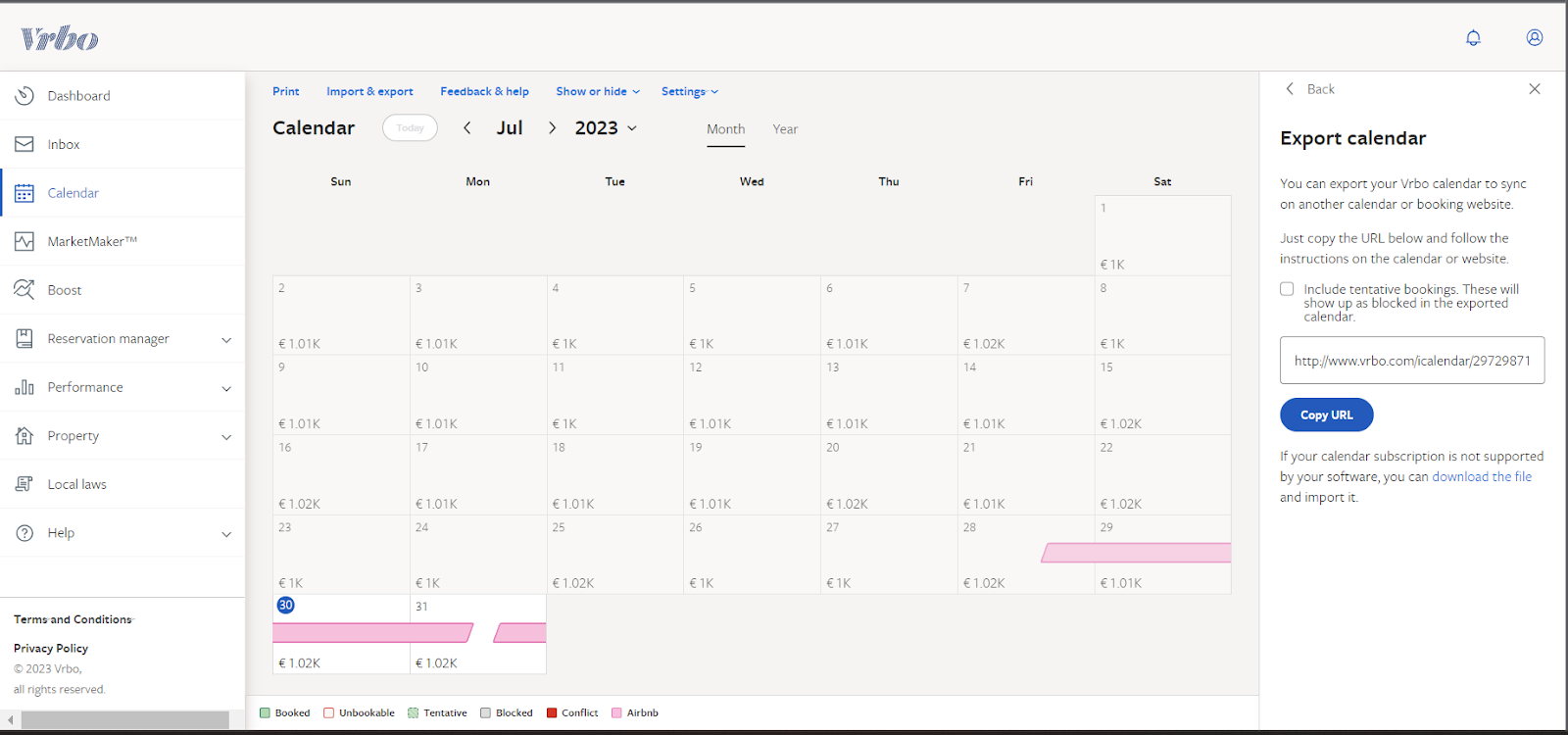
4. Copy the Vrbo calendar link/URL.
5. On airbnb.com, go to Calendar and select your listing.
6. Go to the panel on the right side or click on Pricing and availability
7. Scroll down to Calendar sync and select Import Calendar.
8. Paste the URL of your Vrbo calendar into the Calendar Address (URL) field.
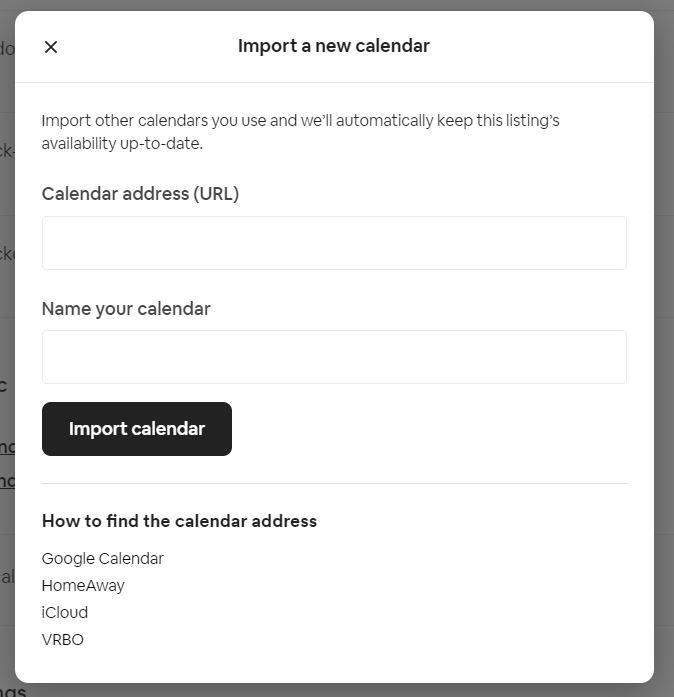
9. Name your calendar (e.g. ‘Vrbo’)
10. Click Import calendar.
And that’s it! Now, your Airbnb and Vrbo calendars are synced. They should update every couple of hours.
Bonus Read: How to Generate Direct Bookings for Your Vacation Rental Business?
You should know that with iCal, your calendars don’t update immediately.
So, how often does your Airbnb calendar sync?
Airbnb and Vrbo calendars usually take a couple of hours to update. So, there’s a chance that a guest could book on one platform, and another guest could book the same dates on another platform in the time it takes for your calendar to update.
Depending on how often you’re getting bookings, the chances that two guests book the same dates within a few hours of each other could be relatively low.
If you want a real-time connection, you must use a property management system or channel manager.
We hope that you find this guide useful and can successfully sync availability for your calendars!
Free calendar sync works until booking volume outgrows it — at that point, see our guide to choosing a full channel manager.
For managing your calendar more broadly, see our complete guide to the vacation rental calendar, and for handling minimum-stay rules dynamically once your calendar is synced, see our guide to dynamic minimum stays.
For combining calendar sync with dynamic pricing in one workflow, see our guide to calendar syncing and pricing control.
Want to learn what PriceLabs can do for you? See for yourself with a free trial. Get started now!