
Get started with PriceLabs now!
Want to learn what PriceLabs can do for you? See for yourself with a free trial. Get started now!

When bookings slow, the first question is whether the whole market is soft or only your listing. The answer decides whether to change your prices, your stay rules or your listing.
Cutting rates before you know the cause can lower revenue without filling dates. Whether the slow period is a shoulder season or a deep off-season, the first step is the same: find the cause.
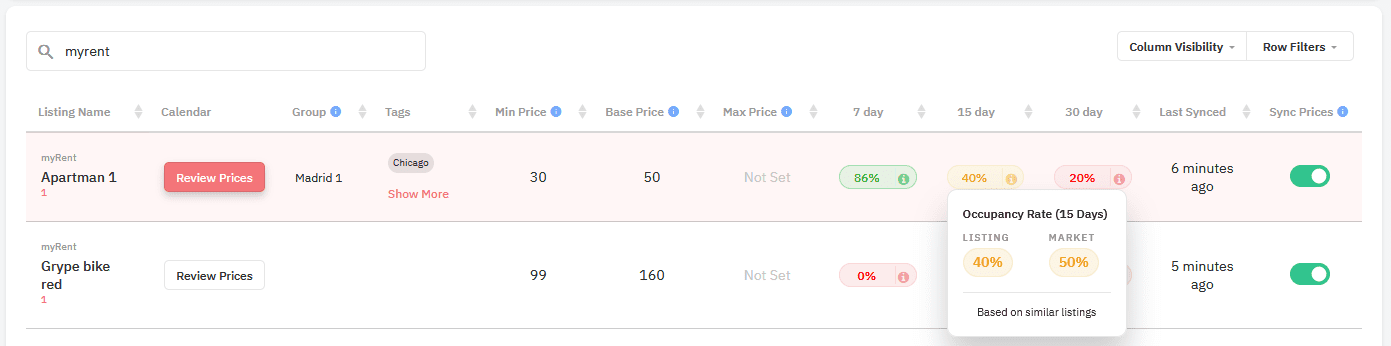
Start with Performance Metrics, which PriceLabs previously called Listing Health. On the Pricing Dashboard or Multi Calendar, click Add Metrics. PriceLabs sets up total occupancy for the next 7, 30 and 60 days by default, the metrics update once a day, and hovering over a metric shows market occupancy.
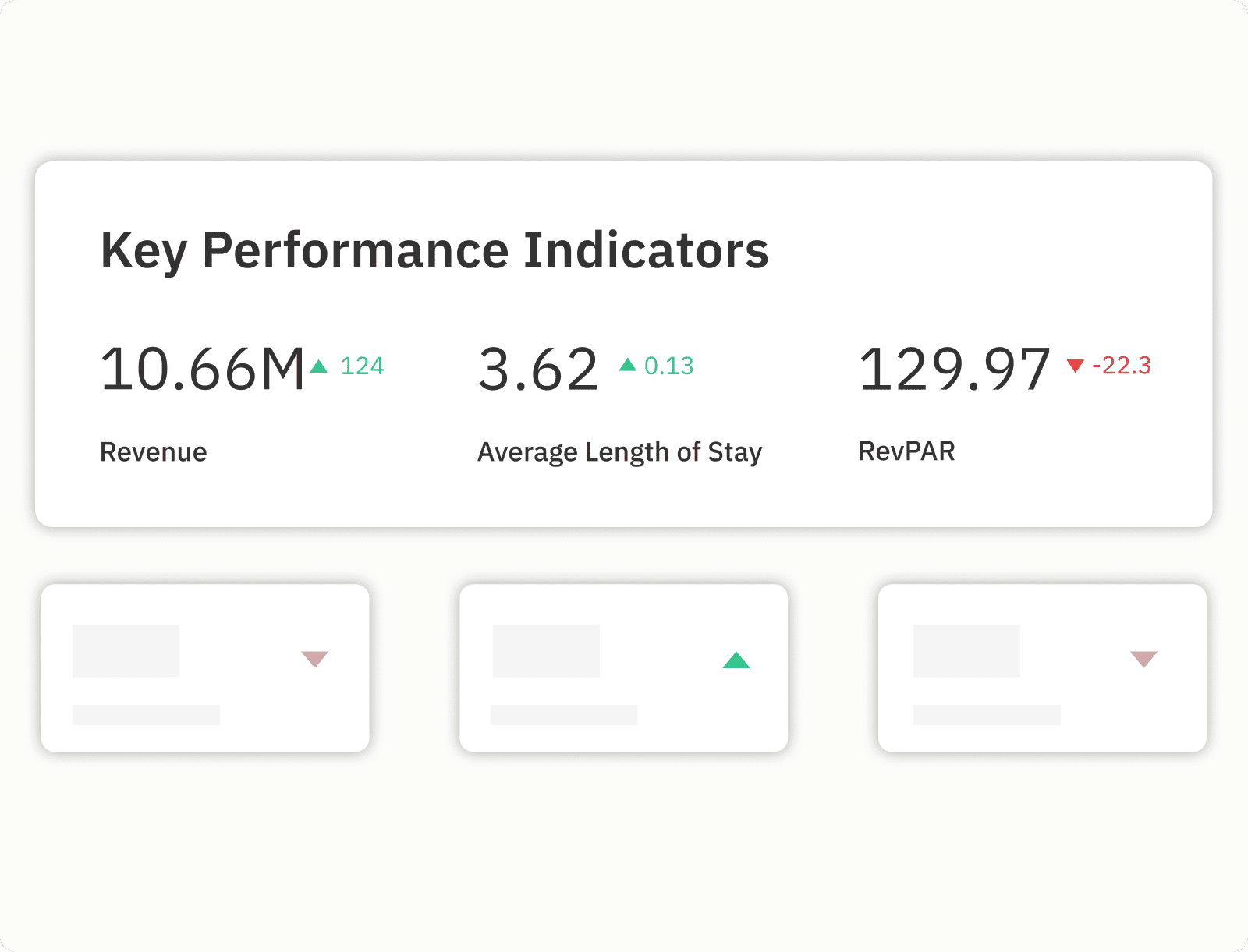
Market Dashboards then show whether a slow month is a market-wide dip or a signal to adjust your own strategy. They cover occupancy, ADR, RevPAR, booking window and length of stay, and they benchmark your listing against a system-defined or custom comp set.
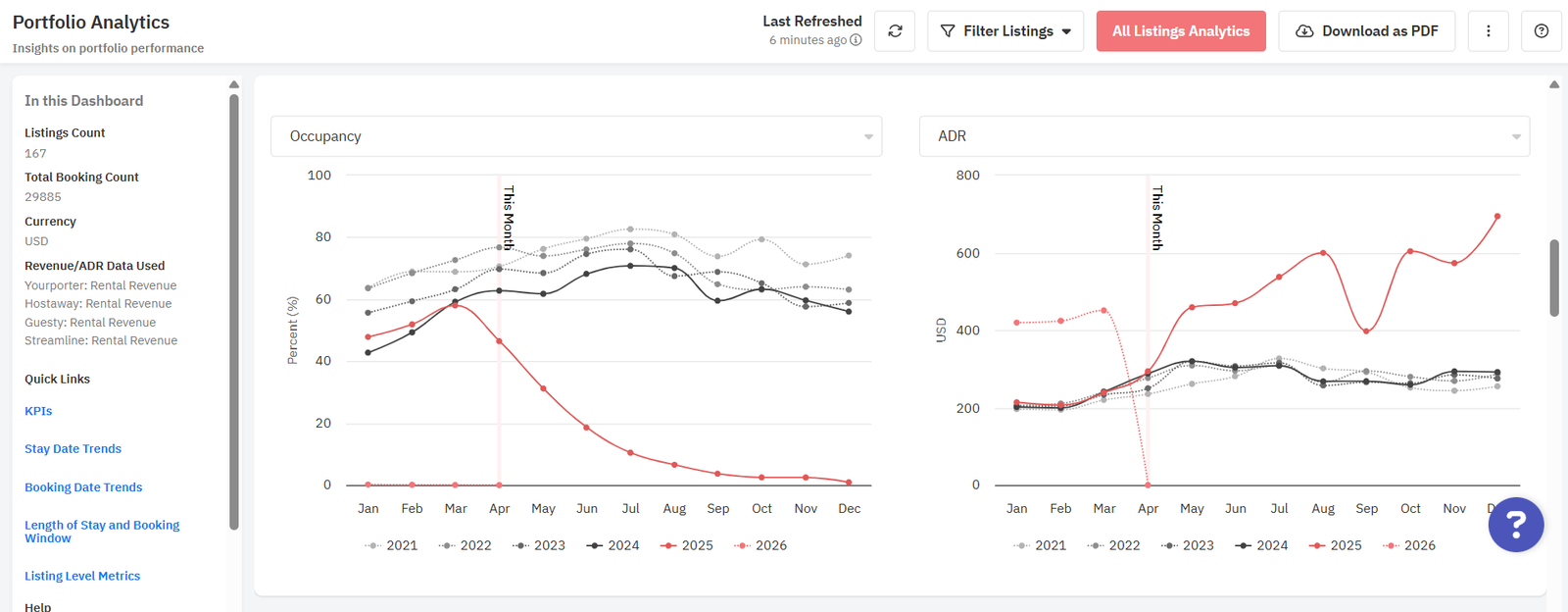
Portfolio Analytics pacing reports compare your future occupancy, ADR and RevPAR against last year or against market benchmarks, so you can see whether you are falling behind before the dates arrive.
PriceLabs Dynamic Pricing applies a seasonality factor and a demand factor by default, and in some markets it also applies a pacing adjustment when projected demand deviates significantly from historical seasonal trends. In a slow season, review how each one is set.

Several defaults already discount the dates closest to arrival, so check them before you add more.
If you also use Airbnb's early bird or last-minute discounts, consider removing them. PriceLabs recommends this because it already applies last-minute discounts and a far-out premium by default.
A high default minimum stay can block dates that a shorter booking would fill. PriceLabs supports separate minimum stay rules for last-minute bookings (up to three rules), far-out bookings, orphan gaps and the days next to a booking.
The Minimum Stay Recommendation Engine suggests minimum stays based on market data, and you can review the recommendations before you apply them.
PriceLabs recommends setting a minimum price, which acts as a floor under your nightly rates and shows up in pricing recommendations. Performance Metrics can show how many available dates are hitting your minimum price, which tells you how often the floor is setting your rate.
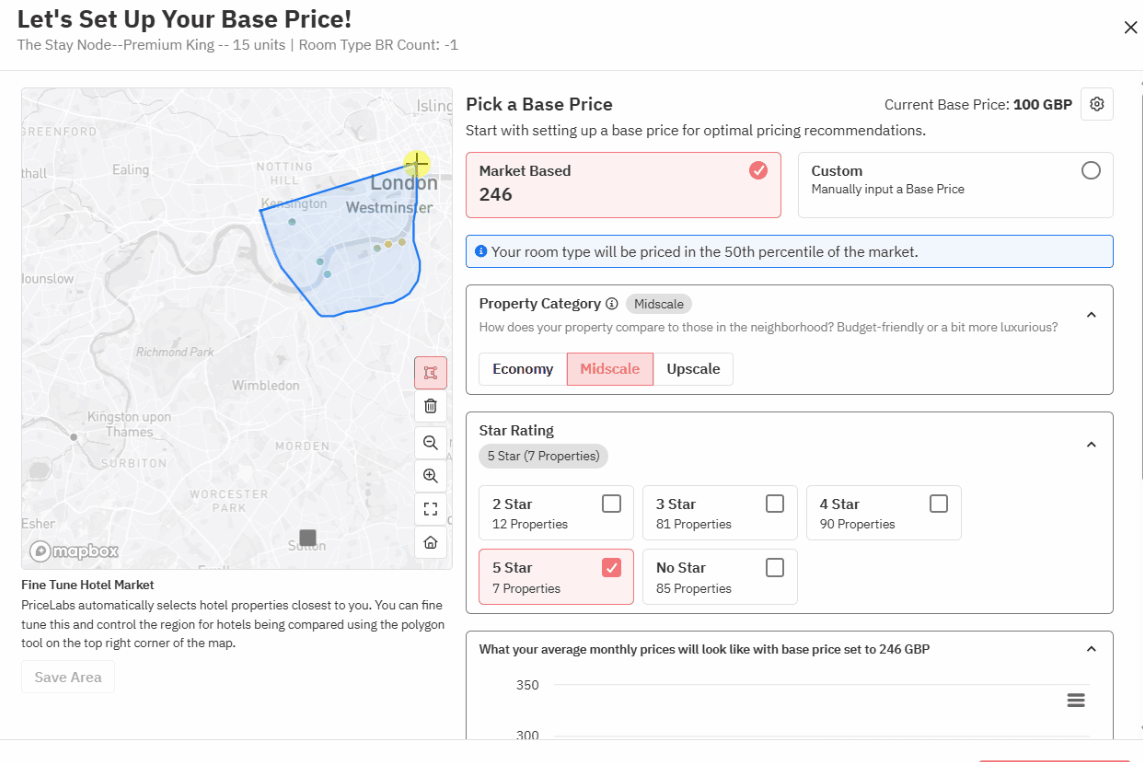
Review your base price periodically, ideally monthly. Base Price Help shows a recommended base price based on your listing's performance and how it compares with local market trends.
Update your cover photo and description to show what appeals in the slow season, and keep your calendar and minimum stays current. Past guests are a low-cost source of bookings, so a returning-guest discount or rewards for regular guests can help fill slow dates.
On Airbnb, you can offer a non-refundable option at a discounted rate alongside your standard cancellation policy for stays under 28 nights. Weekly and monthly discounts are highlighted to guests in search results, and Airbnb notes that longer stays can bring higher occupancy, lower guest turnover and more predictable income.
Find out whether the whole market is slow or only your listing. Performance Metrics show your occupancy for the next 7, 30 and 60 days with market occupancy on hover, and Market Dashboards compare your listing with a comp set.
Check the cause first. PriceLabs already applies last-minute discounts, orphan day discounts and seasonality by default, so compare your rates with the market before adding more discounts, and review your minimum price so rates do not fall below your floor.
They let you shorten the minimum for near-term dates and gaps that a longer default would block. PriceLabs supports minimum stay rules for last-minute bookings, far-out bookings, orphan gaps and adjacent days.
PriceLabs suggests reviewing it periodically, ideally monthly. Base Price Help shows a recommended base price based on your listing's performance and local market trends.
Want to learn what PriceLabs can do for you? See for yourself with a free trial. Get started now!