
Get started with PriceLabs now!
Want to learn what PriceLabs can do for you? See for yourself with a free trial. Get started now!

Getting your vacation rental’s pricing right is a difficult task. There are too many things to factor in before getting it right. The key is to find the sweet spot in the middle. You need to set prices that will grab the attention of your potential guests, cover your costs and make a profit. Using various pricing customizations, you must also consider customizing your pricing according to changing seasons, nearby events, competitors, length of stay, booking patterns, etc. For the full picture of how to set this up and track it over time, see how to customize PriceLabs and track your goals.
Note: We already apply all these factors by default. Opt for customizations ONLY if the recommendations are not in line with your expectations or if you have a specific strategy in mind that works for your market. For the strategic fundamentals behind these defaults, see a guide to dynamic pricing for vacation rentals.
A one size fits all approach will never work when devising pricing strategies. You have to evolve your strategy to fit the adapting market constantly with data-driven decisions to leverage various PriceLabs Customizations.
Preparing for whatever might be in store for you in the future is important.
For example, in April 2020, it was seen that long-term stays were in demand. You would’ve been able to make money in this market if you had planned early on for this trend.
In an internal survey, we found that 75% of property managers and vacation rental owners have their calendars open six months in advance, and some have their calendars open three to six months in advance.
Everything else in this article assumes your base price is already right, so it's worth starting here. Your base price is the average nightly rate you'd charge across the whole year, not your peak rate, not your floor. Every other price PriceLabs sets is a percentage adjustment on top of this one number, so getting it wrong throws off everything downstream.
PriceLabs' Base Price Help tool gives you four ways to set it, depending on your situation:
Once set, PriceLabs shows you where your price falls relative to the market, whether that's a percentile score (a market benchmark, e.g. "$250 is the 75th percentile" means that price separates the top 25% of listings from the rest) or a percentile rank (where your own chosen price actually lands relative to others).
A few things to avoid: don't make large jumps (5-10% increments, with a week or two between changes, works better than one big correction), don't include taxes in a custom base price (they're added on top separately), and don't set your base price close to your peak season rate, PriceLabs already adjusts for seasonality on top of your base, so pricing the base itself at peak levels pushes every date too high.
With Neighborhood data, you can analyze the future prices and occupancy for the following year. It will help you hold a magnifying glass on your standing in the market. With the Market Dashboard, you can choose the date range and compare your prices with the others in the market.
You can also understand your market’s future cancellation trends. With Portfolio Analytics, you can compare the various dashboards you have created to understand your vacation rental portfolio. You can understand which properties are performing or underperforming, evaluate your pricing decisions, and alter your strategies and customizations accordingly.
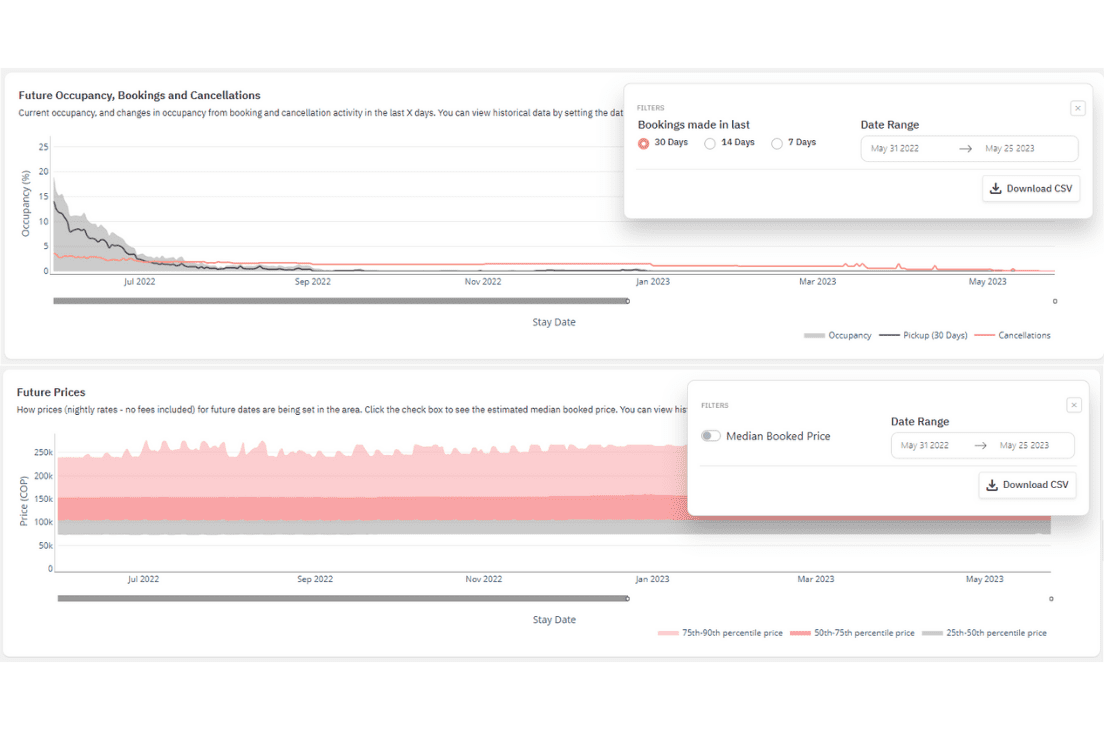
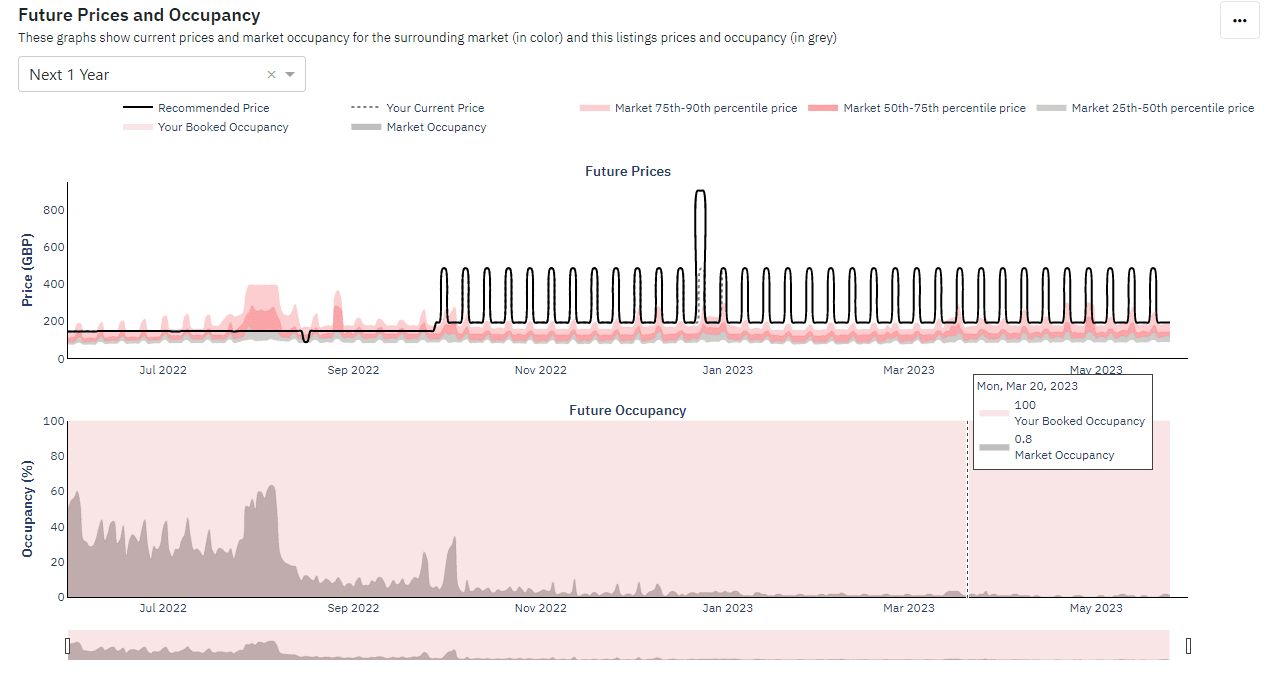
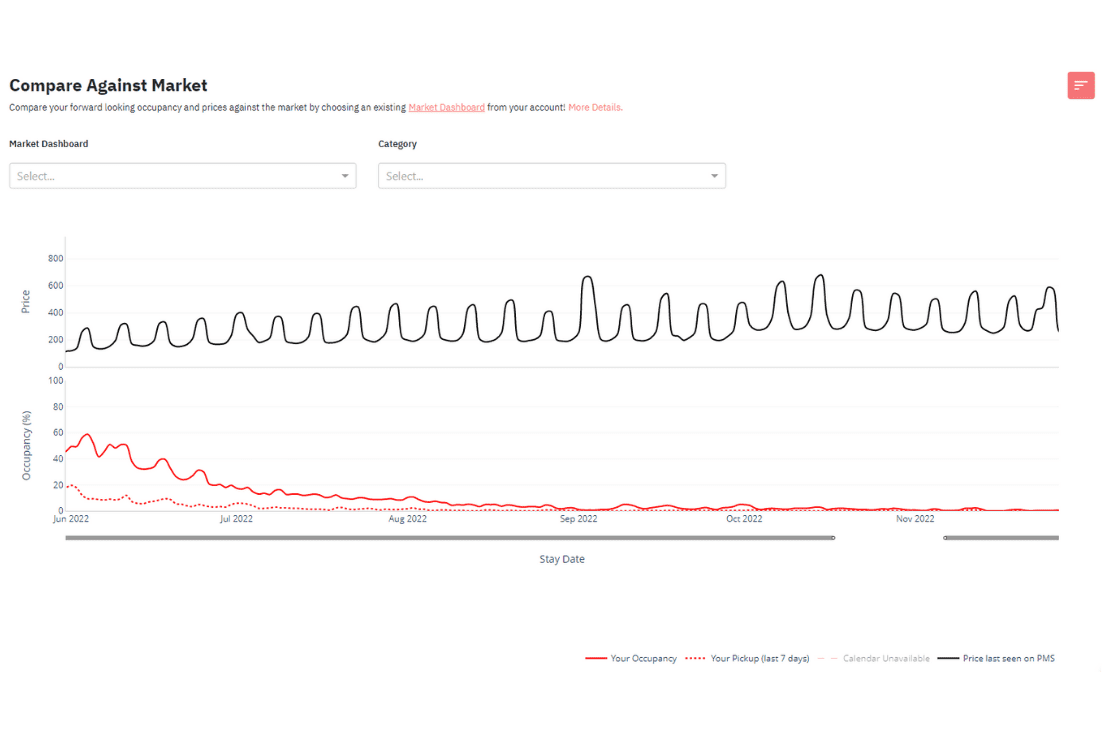
In our Market Dashboard, you can clearly understand your guests’ booking patterns using Length of Stay and Booking Window patterns. Understanding this is useful to fill up your calendar far out in advance. With this information, specify a minimum night and how far out you want this to apply.
For example, if a guest books your property three months in advance, they might book it for a minimum of 5 days. Specifying how long a guest should book your property will ensure that you are prepared for any situation in the future. One of the major benefits of applying this customization is that you can avoid any gaps that might occur due to smaller bookings in your calendar. These gaps might be difficult to fill later on. Rather than struggling, you can fill out your calendar the way you want with this customization.
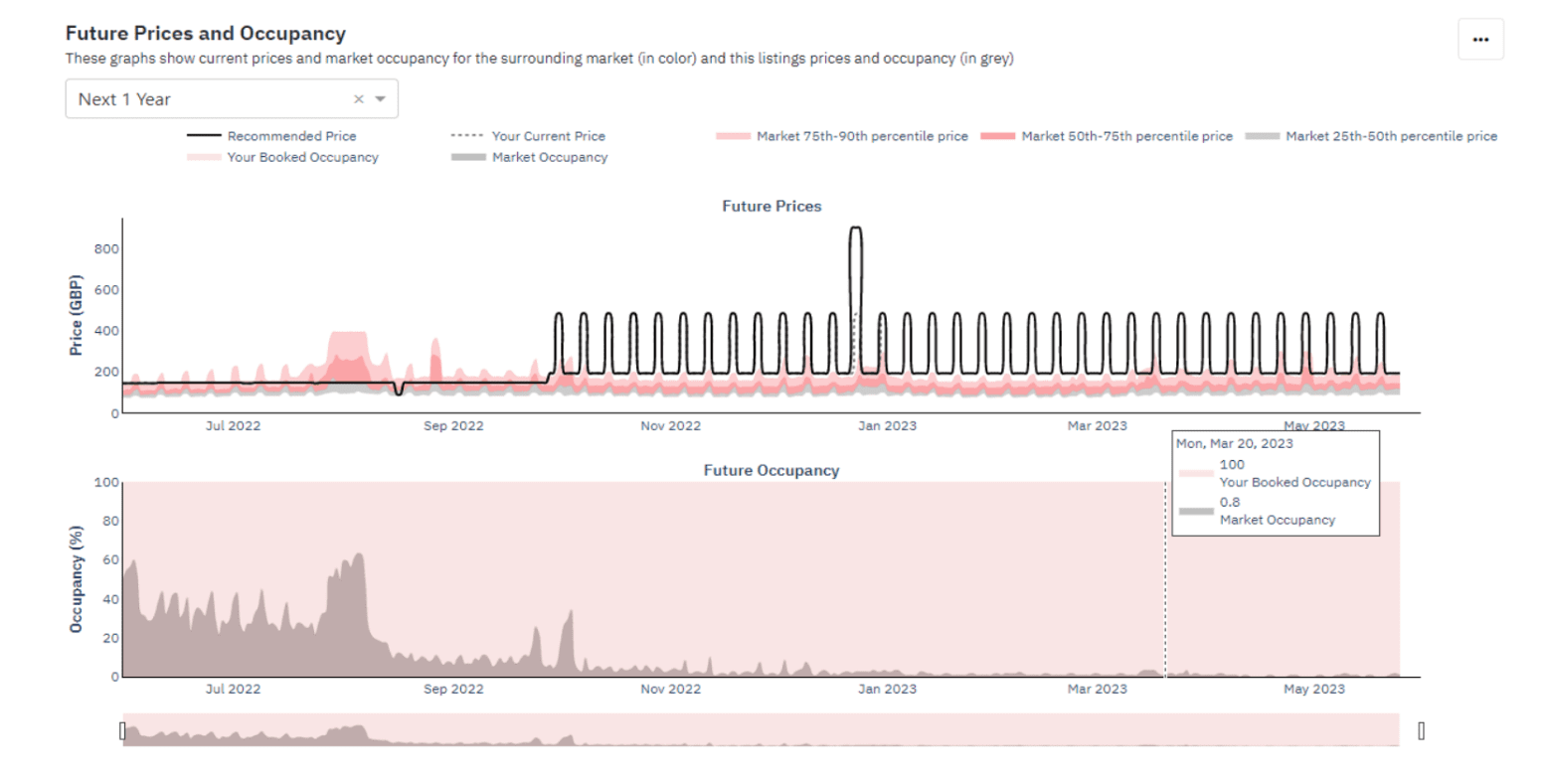
Here you can specify the minimum night’s length and how far out the restriction should be applied. You can add up to 3 far-out booking rules here.
When you’re thinking too far ahead, you’re thinking without a crystal ball. It is possible for your pricing to go lower than the demand at that time. This customization ensures that prices for data beyond a particular data (that you set) do not fall below the price you set.
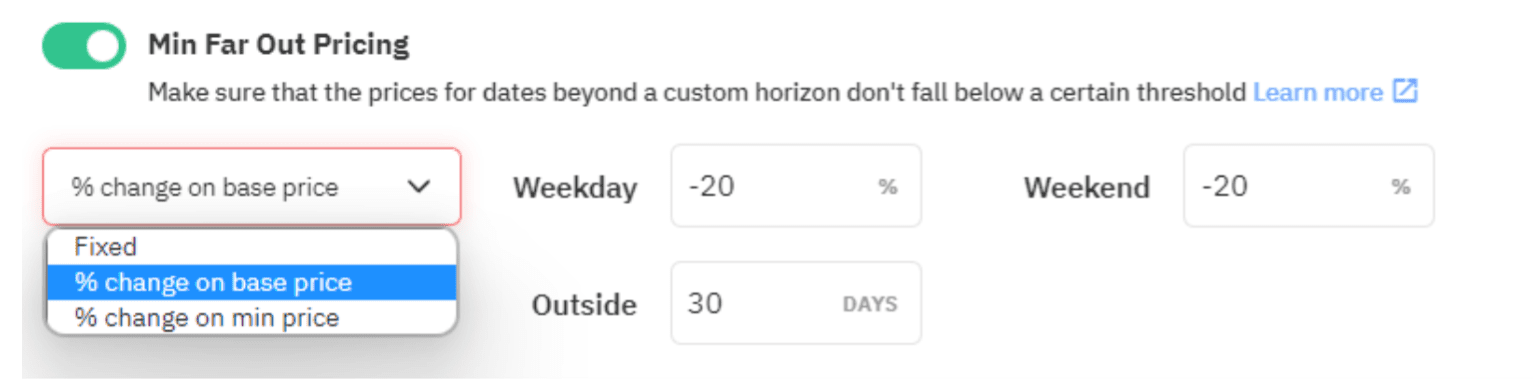
We gradually increase prices far out to ensure you get a fair share of the market.
NOTE: While our algorithm automatically applies this feature, you can customize it. You just have to contact us at [email protected], and we will enable it for your account.
You can also turn this filter off and use Occupancy Based Adjustments to set custom far-out premiums.
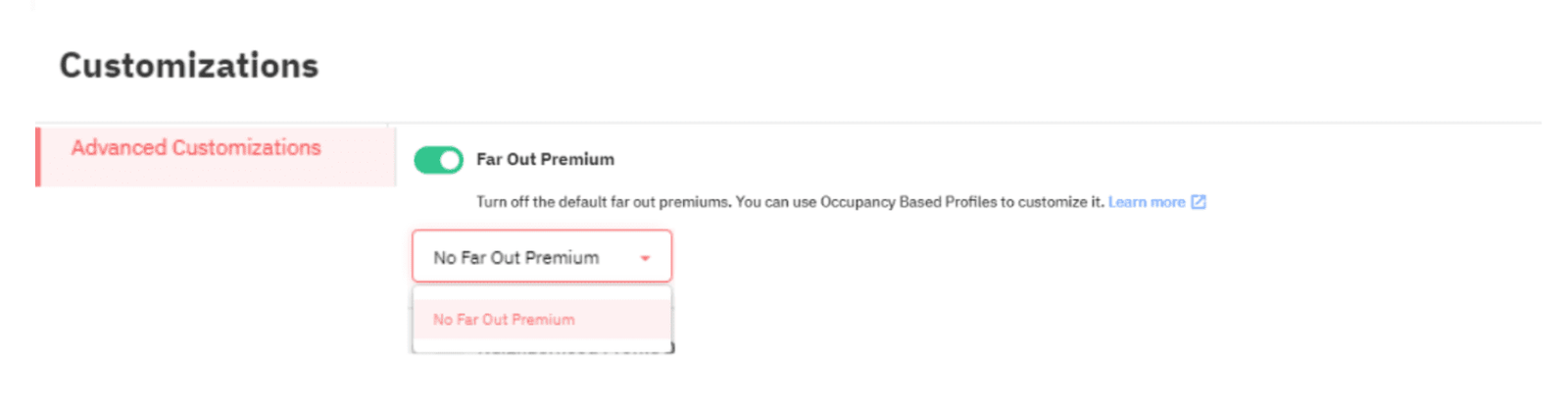
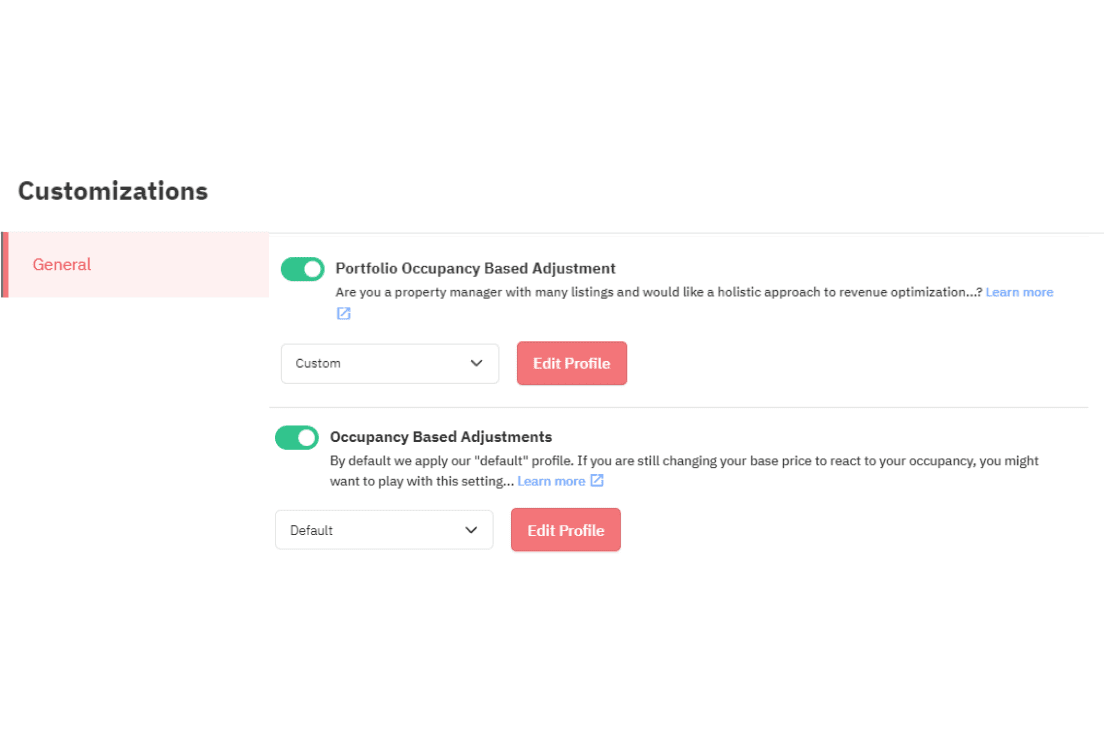
With Occupancy-Based Adjustments, you can set certain adjustments to your pricing based on the occupancy of your individual listings. With Portfolio Occupancy Based Adjustments, you can set certain price adjustments based on the average occupancy of groups of listings with different time windows in your portfolio.
For example, say in your portfolio, one listing has an occupancy of only 35%, but the market has an 80% occupancy, then a 25% discount could be applied to increase occupancy. At the same time, sometime later in the week, if your occupancy is higher, your prices will increase.
More often than not, most of the last-minute bookings that you get might be for shorter durations. In an interval survey, we found that only 30% of property managers and vacation rental owners optimize their stay restrictions according to lead time.
When you look at market data, you might see that many property managers are reducing their prices to get last-minute bookings. So should you join the race? Or wait and watch? There are cases where giving a hefty discount might help. In some cases, you might be offering a discount to a guest that might be willing to pay full price.
Here you need to understand two things:
1. How much demand is left in the market?
2. What percentage of the inventory is still available in the market?
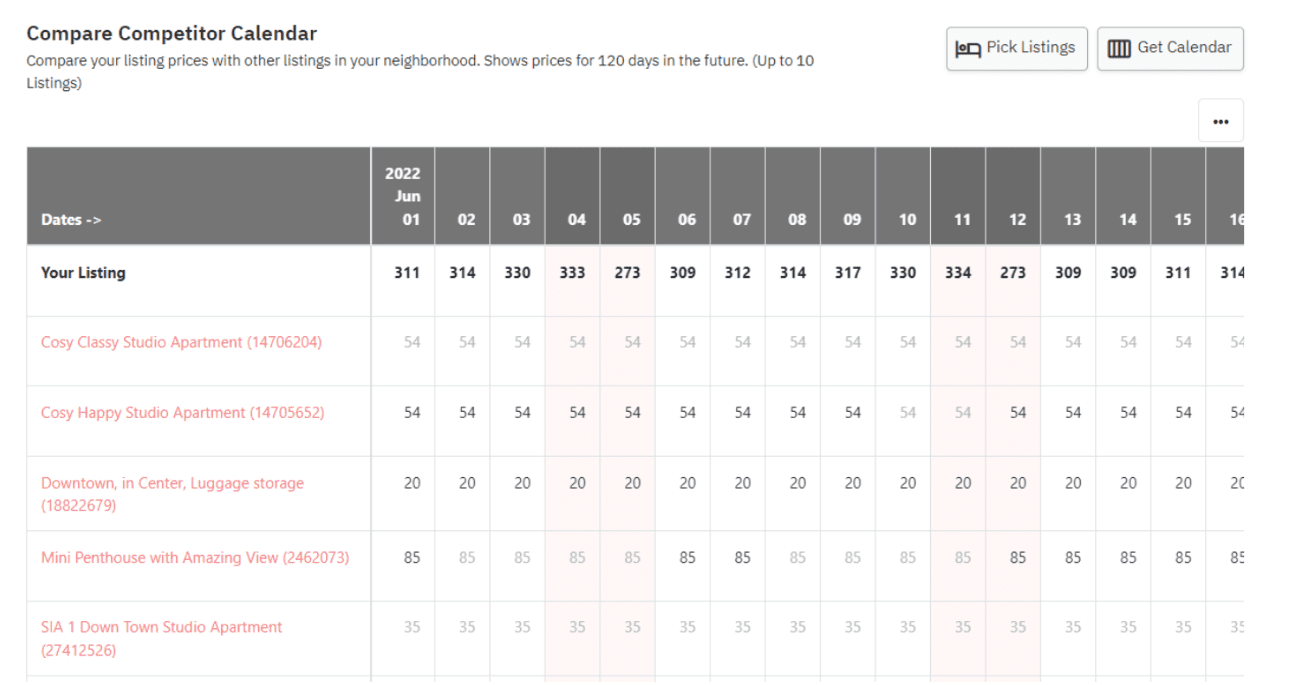
You can use the competitor calendar to analyze how your competitors are pricing themselves in the market.
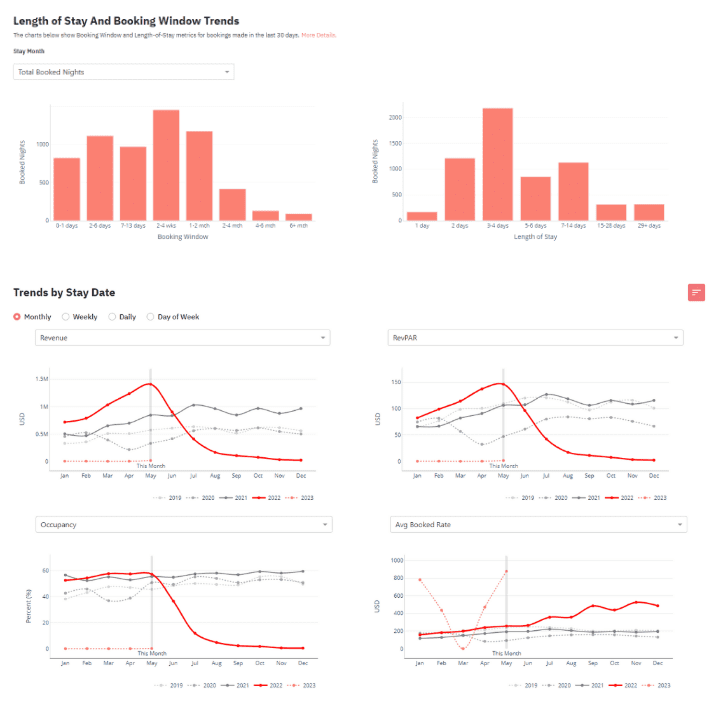
You also need to understand your guests’ booking patterns and plan accordingly. The Length of Stay by Stay Date graph shows the typical duration of bookings made for any given date on the selected dates – past and future (predictions). The graph below shows that long-term stays were famous for this particular property in May. The Length of Stay and Booking Window Trends graph analyses booking trends for future dates.
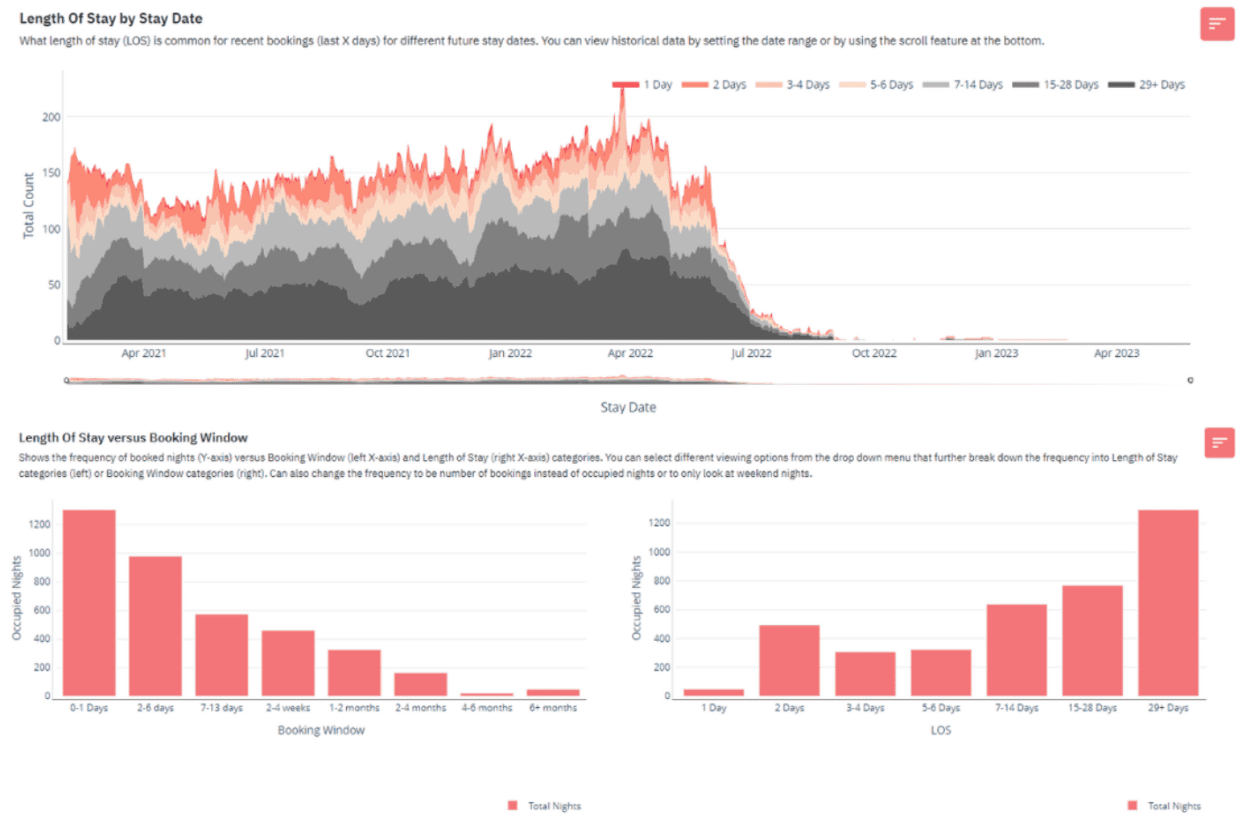
You can use Trends by Stay Date and Length of stay and Booking Window Trends in Portfolio Analytics to better understand your guests’ booking patterns and adjust your last-minute pricing strategies accordingly. In the Length of Stay and Booking Window Trends, you can analyze LoS and Booking Window trends for your whole portfolio. And you can analyse the occupancy for your whole portfolio as well here.
By default, we apply a gradual 30% last-minute discount over the next 15 days from today, whenever today is for you. However, you have four options: Flat %, Gradual %, Fixed, and None. You can use this customization to optimize the prices you want to set for your last-minute bookings.
NOTE: The prices you set here will not go lower than the minimum price. If your discount goes below the minimum price, then the minimum price will be applied.

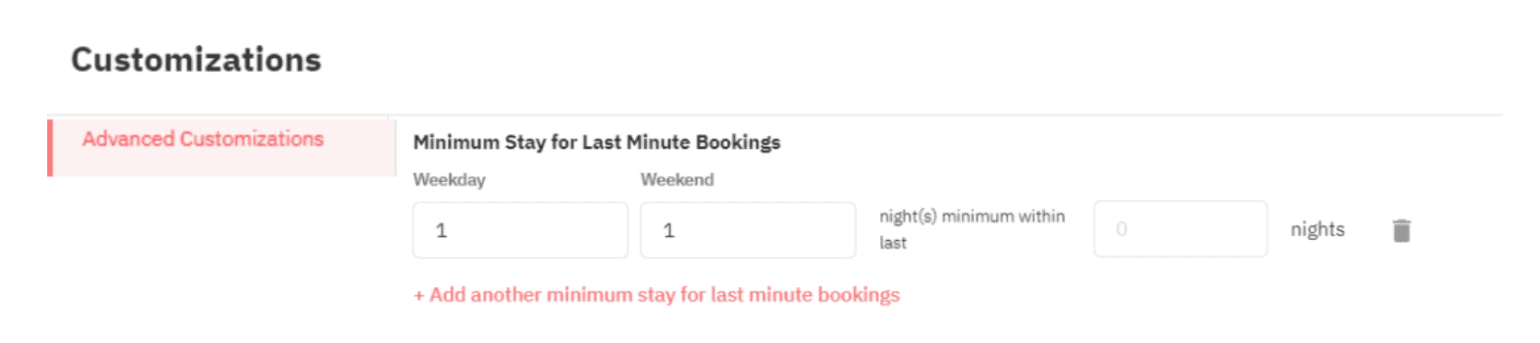
While you understand the price you want to charge for last-minute bookings, you need to also look at the length of the bookings you want to allow for your property. Turning your property around for new guests takes a lot of work. You can set up three different rules depending on the booking patterns of your guests.
When there is a last-minute booking, there is a high chance that it will create an orphan booking. For example, say you got a booking for Friday and Saturday. Your property is already booked for the next week of the previous booking except for Sunday. Now, one day in the middle is left orphaned. An orphan booking is an unbookable gap in your calendar. You can apply a discount to incentivize this booking further. By default, we apply a 20% discount to gaps of two nights or less. However, we do leave control in your hands as well.
There are two options that you can choose from:
Another cool feature is that you can differentiate your orphan day prices for weekdays and weekends. If you tick the box ‘Apply on the weekend,’ the customizations will apply for the weekend.
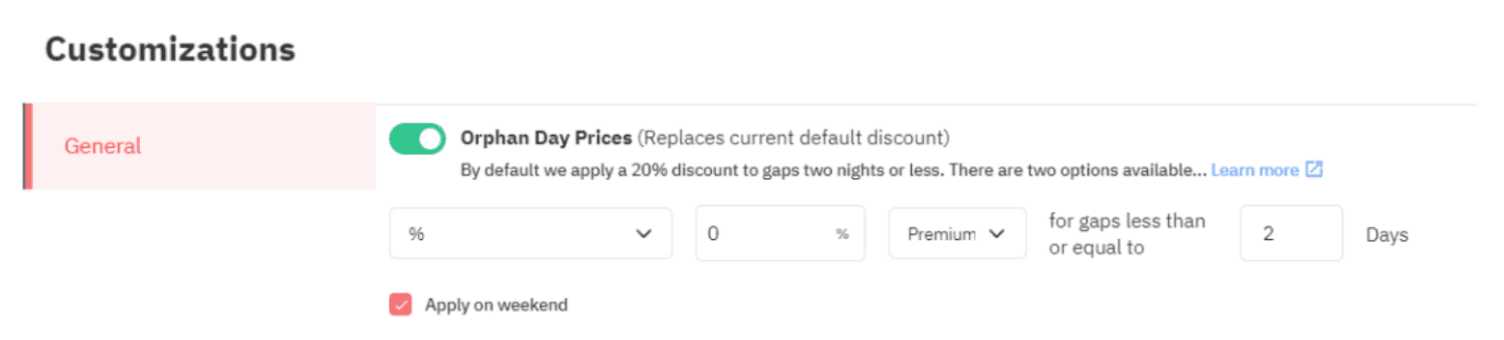
NOTE: If an Orphan day becomes a last-minute day and discounts are set, we will apply the more considerable discount of the two.
You had a birthday weekend booking, and the Monday after that, you have a business traveler book your property. You need to turn the property around in a very short period of time. Maybe you want to charge a premium to consider the workload. Or you have just rented your property for a discount (a huge one), and you want the one you got before this to be at a premium? Whatever your reason, you can use this customization to adjust the pricing of bookings right before and after you have a registered booking in your calendar.
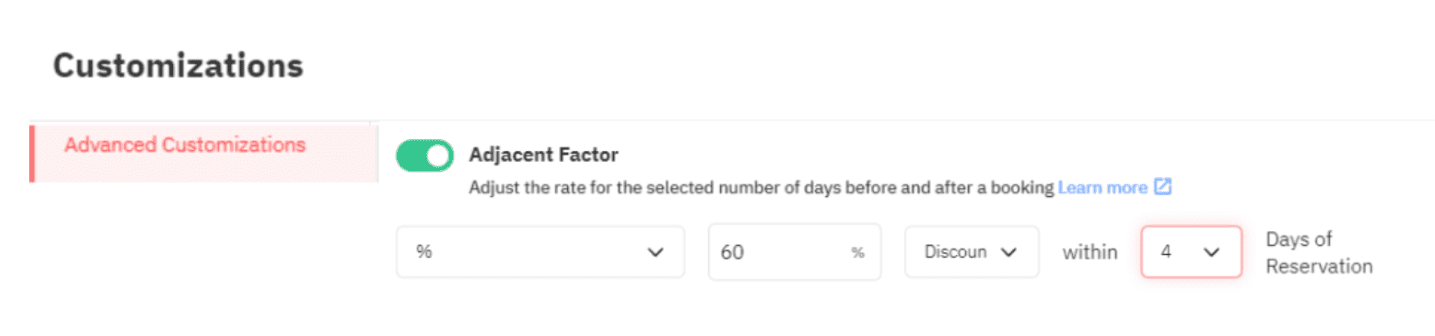
You might want to control how you get your bookings before and after a booking. Whatever your reason, you can use this customization to implement Length of Stay restrictions after and before a booking.
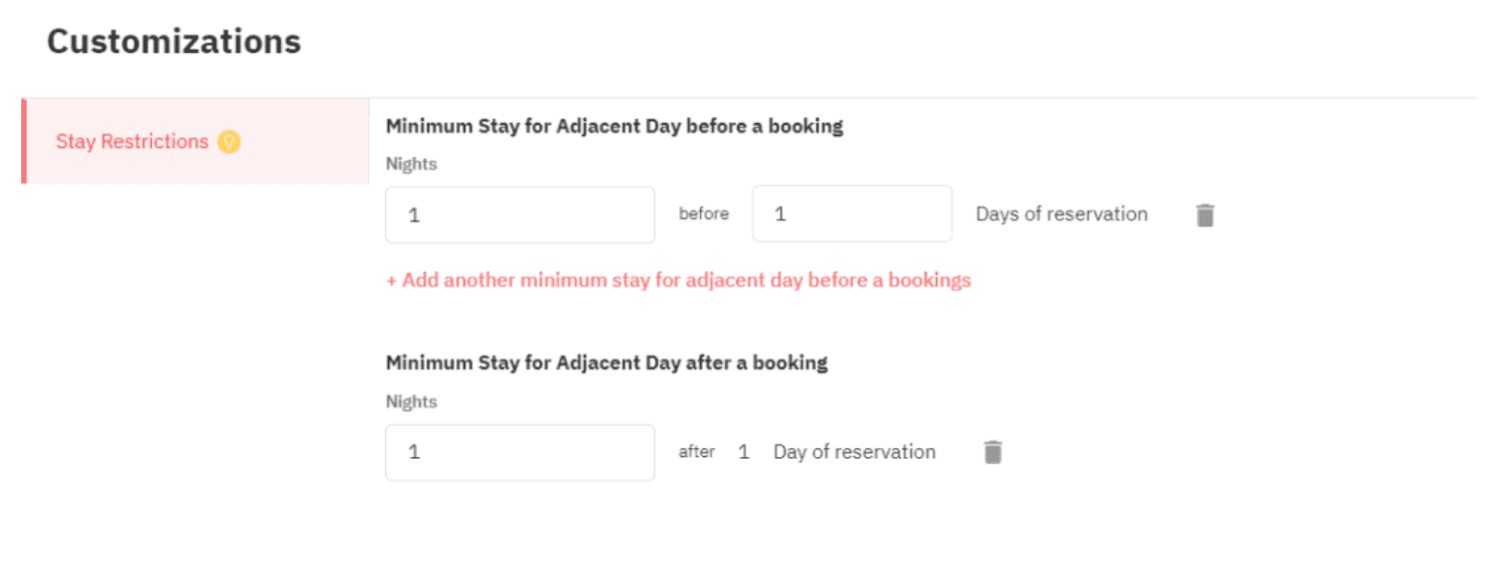
You can set minimum stay settings to ensure you are protected even if an orphan gap happens. This way, guests will not be able to book your property for fewer nights than you are comfortable with, preventing unnecessary gaps.
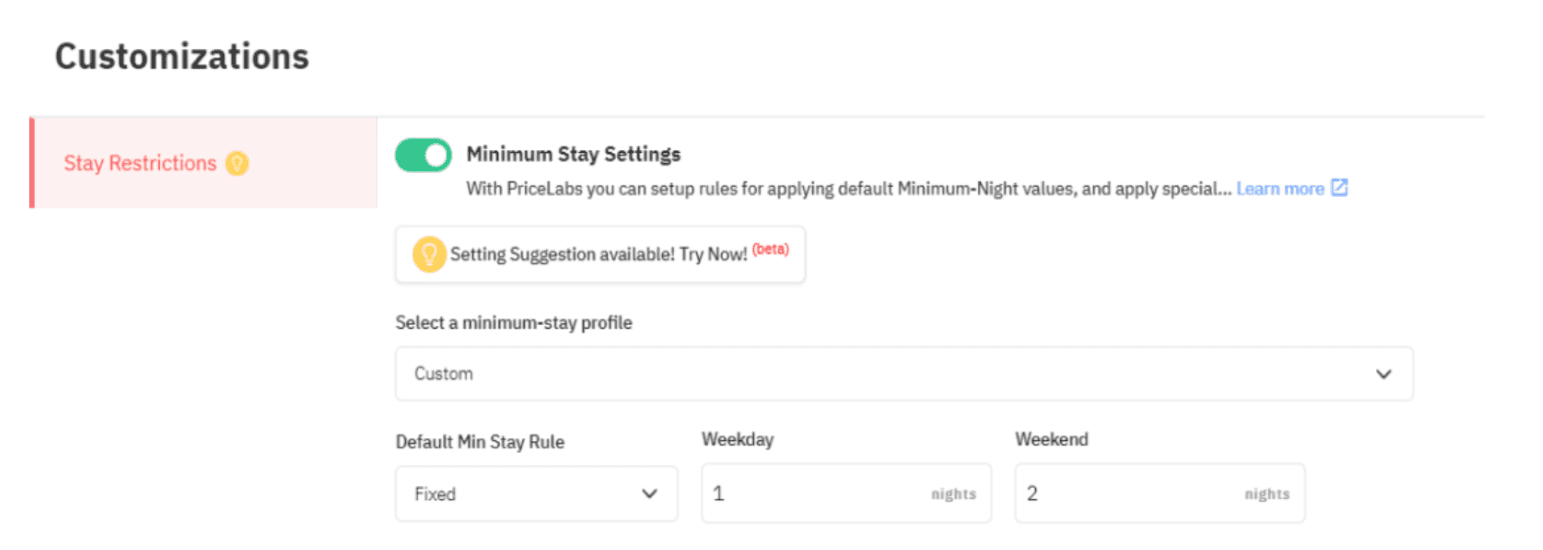
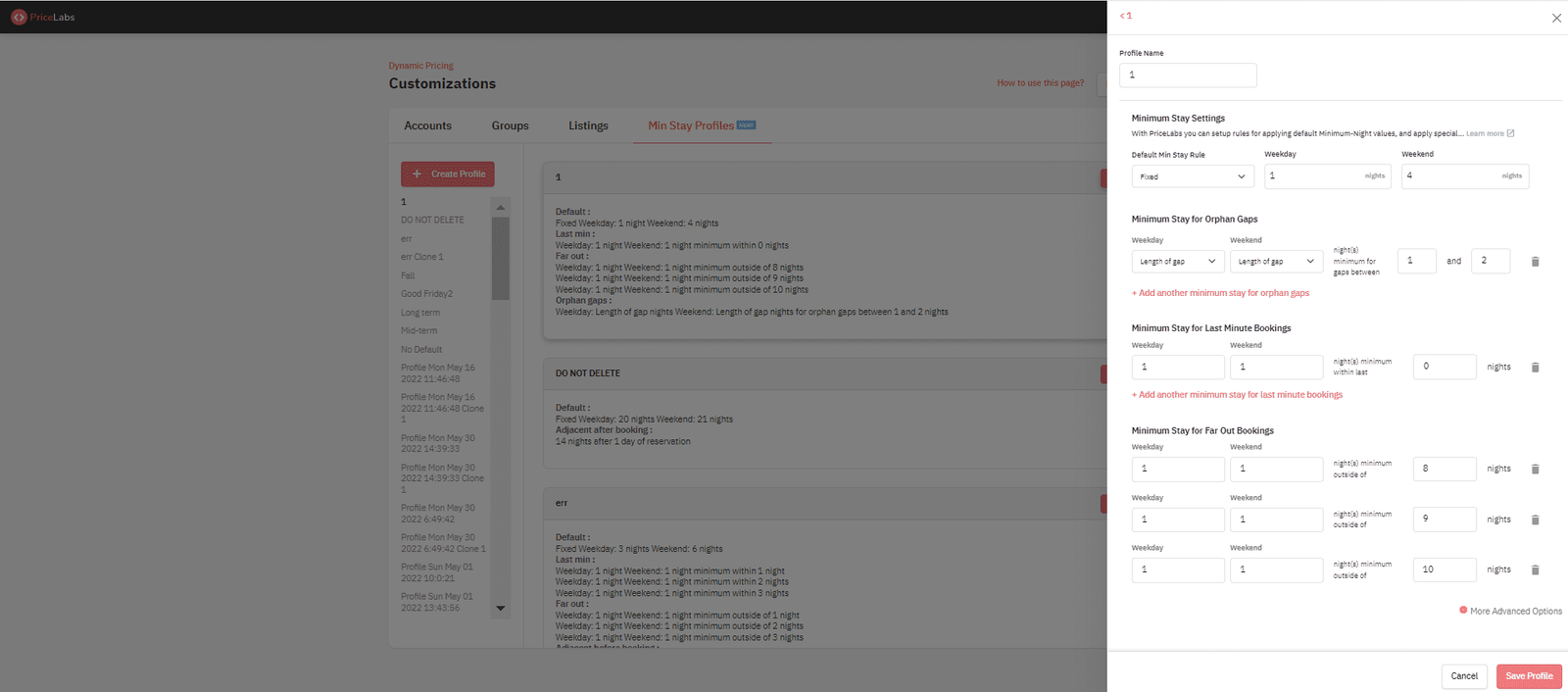
You can choose a custom minimum-stay profile here or one of the minimum-stay profiles you already set. With minimum-stay profiles set, you need not replicate the same combinations of customizations repeatedly. Once you have a profile, save it and use it across the PriceLabs platform.
Weekends, the period around events and festivals, are among the high-demand seasons. It has the most competition. While you can add custom rates for busy seasons, holidays, or special events in your locality, you can go the extra mile for your guests. You can offer unique amenities such as a special candlelight dinner during Valentine’s day for couples.
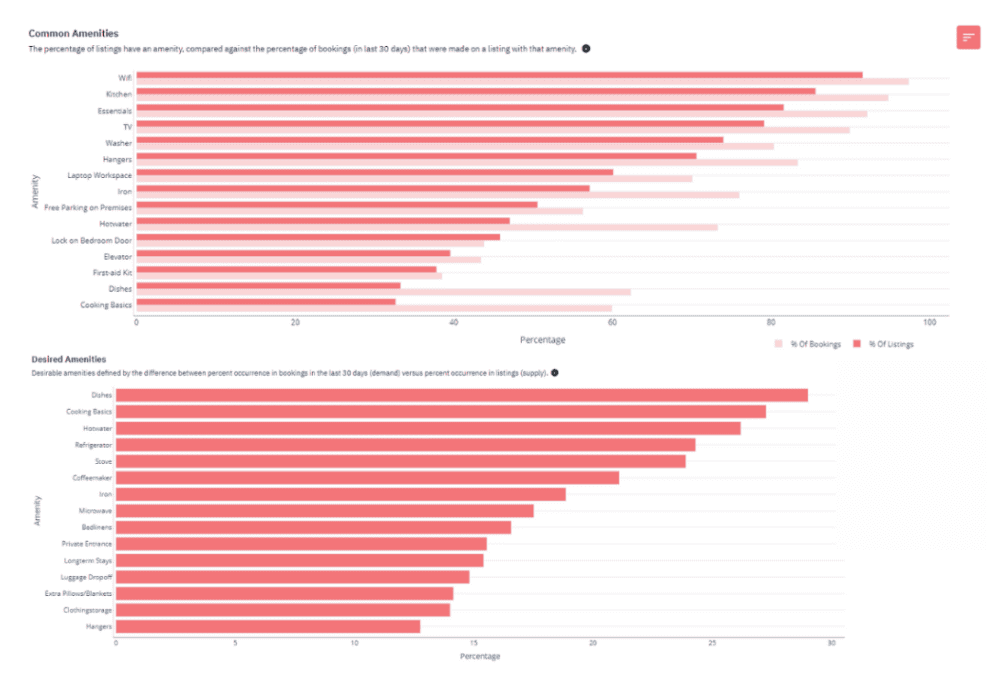
You can use our Neighborhood data and our Market Dashboard to understand the demand and market trends during the high-demand seasons. You can use our Market Dashboard to understand the amenities your guests are looking for and are being provided by your competitors. Understanding this can help you provide your guests with what they are looking for or maybe even go ahead during high-demand seasons.
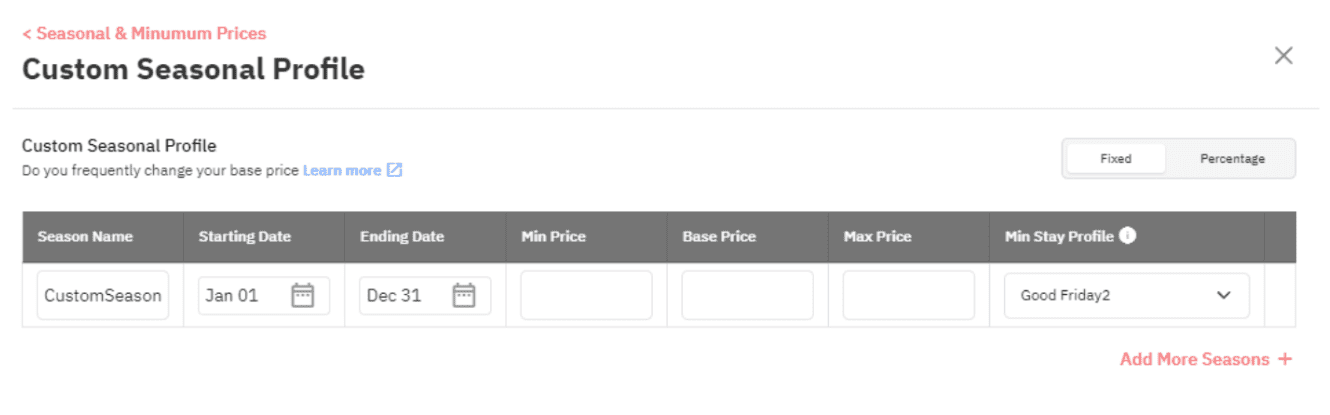
Remember the minimum stay profiles we set earlier; they are helpful in more than one case.
So, you might be a person who constantly changes their base price. Good for you, you should! We recommend revisiting them every two or three months to ensure they are on par with the market trends. Or do you have multiple high-demand seasons? Creating multiple customizations each time the demand increases will be tedious. So, set up seasonal profiles and let the platform take care of the rest.
While you set up custom seasonal profiles, remember to turn off PriceLabs seasonality. You can contact our support team for help. This is to avoid seasonality by applying twice to your pricing.
When would you need this customization?
NOTE: Cover every date of the year from Jan 1 to Dec 31, as these seasons are not for a specific year. They will carry over from year to year.
As and when there is an increase in demand, we apply automatic fluctuations to your pricing. Various factors impact our price recommendations. One of them is daily demand trends. These things change from one stay to another depending on the demand for a certain stay date. These fluctuations could be because of holidays, events, days of the week, etc.
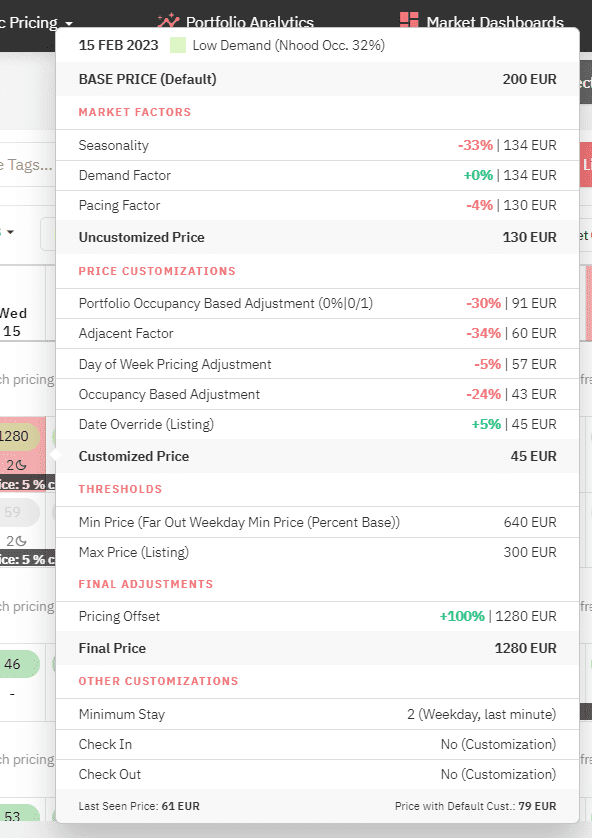
Two other factors impact our price recommendations:
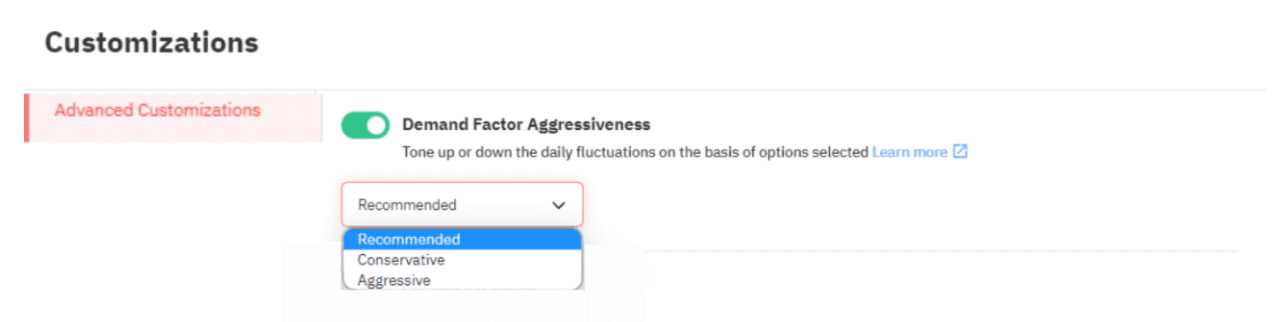
We give the baton to you to fine-tune the variations you require at your prices according to market trends and your expertise for the big holidays, festivals, events, and/or special occasions. You can achieve this by using our dashboard’s demand factor aggressiveness feature.
Seasonality is the cyclical variance in demand throughout the year. This is unique to each market. For example, Miami experiences maximum footfall during winter. Mostly February to April might not have an overwhelming fill of tourists. Except during spring break, the city is filled with party people this time of the year. With historical data, we might be able to predict the cyclical variance in demand. This can help you plan in advance according to demand trends.
We, by default, consider Friday and Saturday as the weekend. However, there might be cultural and regional differences:
In both cases, you can set your own weekend.
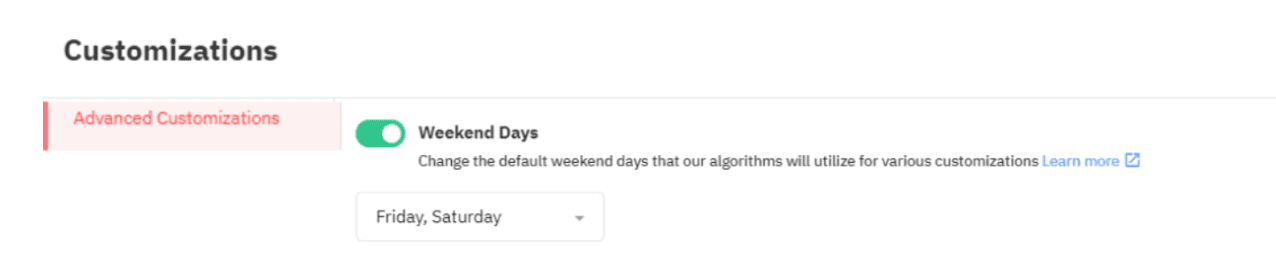
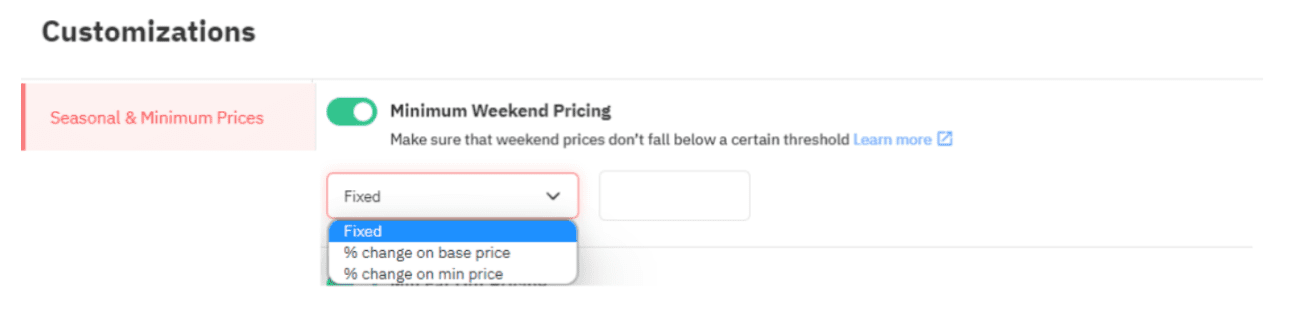
Now that you’ve defined the weekend for your listings. It is also important to set the prices for your weekends. As demand increases, your prices should be competitive to bring you profit. This can be used to set a different minimum price for weekends. During low seasons, your minimum weekend pricing might also become last-minute pricing.
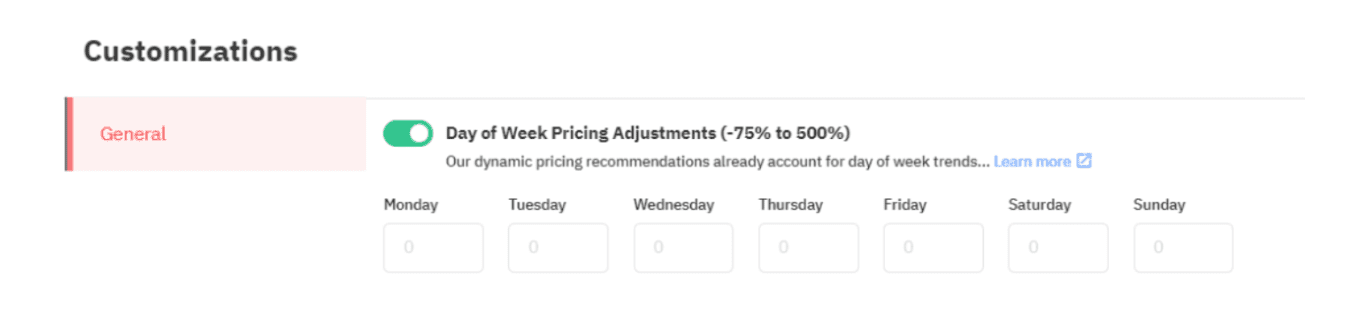
Understanding how each day of the week performs would help in strategizing accordingly. While PriceLabs already accounts for the day-of-the-week trends, any adjustments made to this customization will be applied on top of our default settings.
Length of Stay (LOS) Pricing Adjustment applies a percentage change based on how many nights a guest plans to stay, applied to the final recommended price, after all your other customizations have already been factored in.
This is useful in either direction: discount longer stays to encourage them (say, 10% off for 7+ nights, 15% off for 14+ nights) if you want to reduce turnover, or the reverse, if you'd rather encourage shorter, higher-rate bookings in your market.
Note that LOS Pricing Adjustment is only available for listings syncing through specific property management systems, it isn't universally available across every integration, so check whether your PMS supports it before planning a strategy around it.
To set it up, go to the Customizations panel, open the General tab, click "Edit Adjustments," and define your premium or discount for each stay-length threshold.
If you manage multiple listings, you can set customizations and date-specific overrides at four levels: Listing, Subgroup, Group, and Account. When rules exist at more than one level for the same listing, PriceLabs needs a consistent way to decide which one actually applies.
For customization rules (last-minute pricing, orphan day pricing, minimum stay settings), the most specific level wins: a Listing-level rule is used if one exists; if not, PriceLabs checks Subgroup, then Group, then Account. Minimum stay settings are all-or-nothing at each level, you can't combine a default rule from the account level with a last-minute rule set at the listing level.
For date-specific overrides, the same specificity order applies: Listing beats Subgroup beats Group beats Account for any given date.
When multiple price rules apply to the same date, they resolve in this order: date-specific fixed price overrides, last-minute pricing, and orphan day pricing are applied first, in that order. An Account or Group-level "% change on Base Price" override counts as fixed pricing here, and it takes priority even over a listing-level fixed minimum or maximum price. For example, a listing with a fixed maximum price of 1,450 will still show a final price of 1,933 if a +270% change on base price is set at the group level (475 base price times 3.70, plus a 10% final adjustment), the group-level percentage override wins.
If no date-specific override applies, last-minute and orphan day pricing are applied together: if both are discounts, the larger discount is used; if one is a discount and the other a premium, or both are premiums, both apply. Percentage-based and Occupancy-Based Adjustments are applied on top of whatever price results, for any date that doesn't already have a fixed-price customization.
For minimum stay specifically, the order is: Date-Specific Override, then Far-Out, then Last-Minute, then Default. Orphan Day settings are the one exception: they override all of the above, but only when doing so results in a shorter minimum stay, never a longer one. So if you have a 1-night last-minute rule within 10 days, and a 2-day orphan gap shows up in that window, the last-minute rule still wins, since it's already shorter than what the orphan rule would set.
Everything covered so far in this article works at the individual listing level. But if you're managing more than a handful of properties, setting the same far-out rule, the same weekend pricing, or the same seasonal profile on every listing one at a time gets tedious fast. Customization Groups solve this: set a rule once at the group level, and it applies to every listing assigned to that group.
Creating a group: go to the Customizations page and use "Create New" to set up a group. Configure whatever customizations and date-specific overrides you want the group to share, and give it a name that reflects what the listings in it have in common, a neighborhood, a property type, a shared owner, whatever grouping makes sense for how you actually manage your portfolio.
Assigning listings to a group: from the Manage Listings page, select the appropriate group from the dropdown for each listing. A listing can only belong to one group at a time.
Subgroups, for finer segmentation: if a group itself needs to be split further, say, you group listings by neighborhood, but want different rules for 2-bedroom units within that neighborhood, Subgroups let you nest that distinction inside a group rather than creating an entirely separate group. This needs to be enabled on your account; reach out to support@pricelabs. co to turn it on.
Reviewing group customizations in action: head to the Review Prices dashboard, which is searchable by listing ID, listing name, tags, and customization group, so you can filter down to just the listings in a given group and confirm the shared rules are behaving as expected.
Bulk syncing a group: from the Groups tab on the Customizations page, click the three dots next to a group and choose Sync Now to push updated prices to your booking channels or PMS for every listing in that group at once, or Refresh Listings in Account to apply changes across the account without a full sync.
One thing to keep in mind: group-level settings don't override listing-level ones. If a listing has its own customization set directly on it, that takes priority over whatever the group says, the hierarchy described above still applies here. Groups are for setting sensible shared defaults across a portfolio, not for guaranteeing every listing behaves identically regardless of what's set on it individually.
_____________________________________________________________________________________
NOTE:
Static pricing is a fossil at this point in the revenue management journey. Setting up a dynamic pricing strategy that can constantly listen to the subtle conversations of the market to amp up your pricing is the need of the hour. Adapting your rates will boost you to be competitive and increase your profits.
Contact us if you have a question, story, or feedback. We love hearing from you.
Want to learn what PriceLabs can do for you? See for yourself with a free trial. Get started now!