Table of Contents
Updated : Feb 18, 2026
Running a hotel on static, set-it-and-forget-it rates is a lot like wearing an off-the-rack suit—it covers the basics, but it will never fit your unique measurements perfectly, leaving money on the table and making you look less competitive. To truly maximize your RevPAR (Revenue Per Available Room) and stay ahead of the market, you need hotel dynamic pricing customizations. While data-driven algorithms are fantastic at doing the heavy lifting by analyzing broad market trends, nobody knows your specific property, your local corporate accounts, or your unique booking windows quite like you do. By combining PriceLabs’ powerful algorithms with your local expertise, you can tailor your rates to fill empty rooms, capitalize on high-demand periods, and build a revenue strategy that fits your hotel perfectly.
1. Smart Presets: The Fast Track to Professional Setup
When you are managing a hotel, time is your most valuable asset. With dozens of pricing options available, configuring everything from scratch can feel overwhelming. This is where Smart Presets come in. They provide tailored, out-of-the-box recommendations based on your property type and revenue management history.
Practical Tip: Don’t skip this step! It automatically aligns your account with industry best practices for hotels, saving you hours of manual setup.
How to Navigate This in PriceLabs:
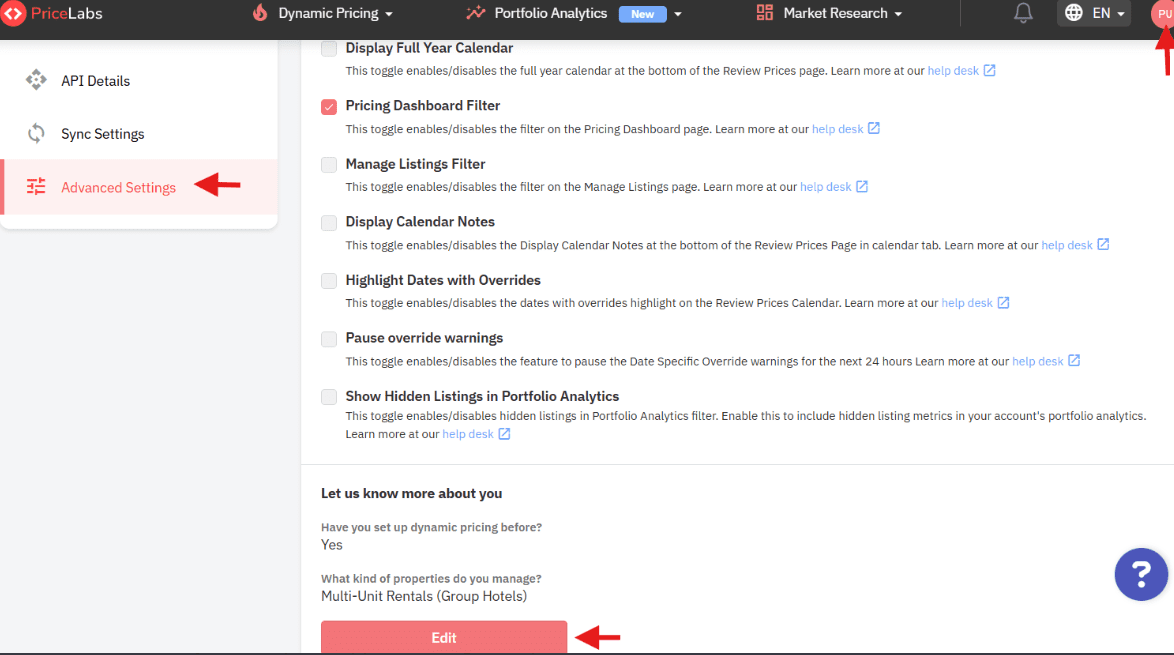
- Once you connect your hotel listings to PriceLabs, a Smart Presets pop-up will appear.
- Select Yes or No to indicate if you are experienced with dynamic pricing.
- Choose Hotels as your property type.
- Drill down into your specific niche: Independent Hotels, Group Hotels, Bed & Breakfasts (B&Bs), Resorts, or Apart-Hotels. (If you run a Hostel or Serviced Apartment, look under “More Property Types”).
- Need to change this later? Simply head to Settings > Advanced Settings, click Edit under “Let us know more about you,” and update your profile.
2. Fixing Calendar Leaks with Orphan Day Prices
An “orphan day” is a frustrating 1- or 2-night gap between existing bookings. For hotels, these midweek or awkward weekend gaps are notoriously hard to sell, often resulting in lost revenue. By default, PriceLabs applies an automatic 20% discount to these 1-2 night gaps to make them more attractive to last-minute bookers.
How PriceLabs is Helpful Here: PriceLabs allows you to completely customize how you handle these gaps. Instead of a blanket 20% discount, you can get highly strategic.
How to Apply Custom Orphan Day Rules:
- Navigate to your Customization Level (Account, Group, or Listing) and open the Smart Presets or All Customizations tab.
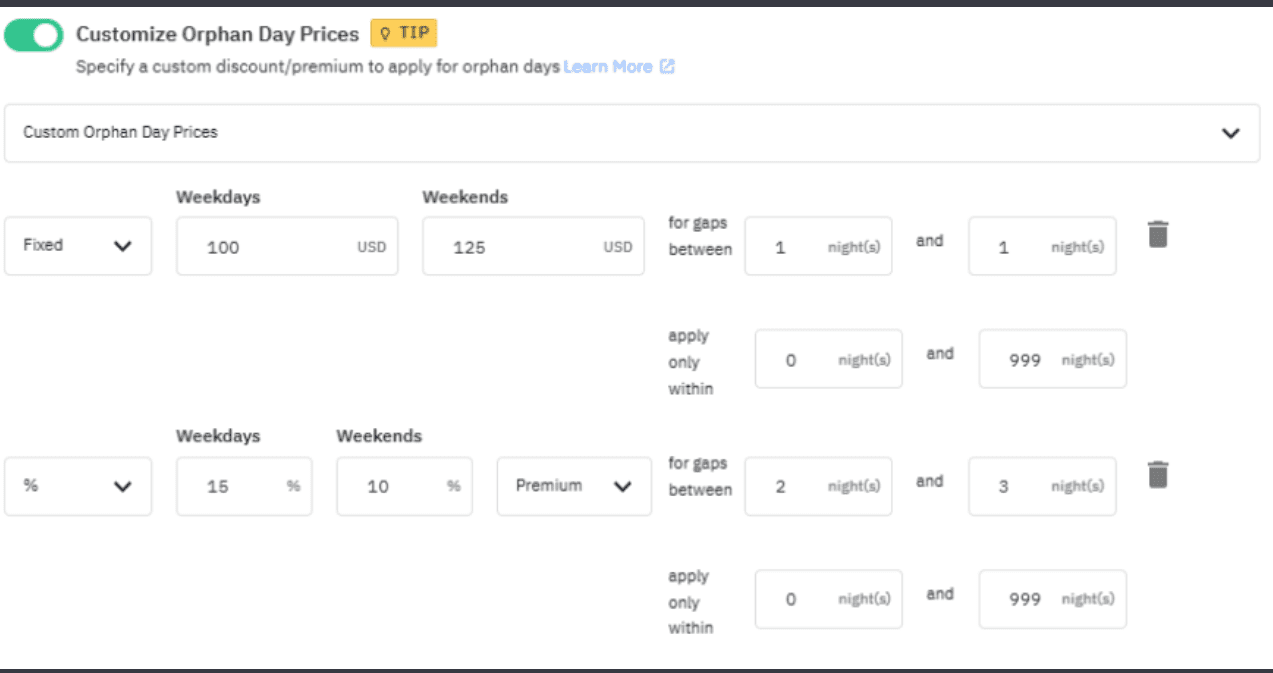
- Set Ranges: You can apply up to 5 different Orphan Gap ranges. Make sure to apply them in ascending order (e.g., set up a rule for a 1-night gap first, then a 2-night gap).
- Choose Fixed or Percentage: You can apply a Fixed Price (e.g., “Any 1-night gap within the next 7 days drops to $150”) or a Percentage Discount (e.g., “Take 15% off a 2-night gap”).
- Weekday vs. Weekend: You can even set different rules for weekdays versus weekends.
3. Enhancing Revenue with Last-Minute and Far-Out Pricing
Every hotel manager knows the anxiety of looking at empty rooms for the upcoming weekend. Conversely, you don’t want someone booking your best suite for next year’s peak season at today’s low rates. Hotel dynamic pricing customizations let you protect both ends of your booking window.
How PriceLabs is Helpful Here:
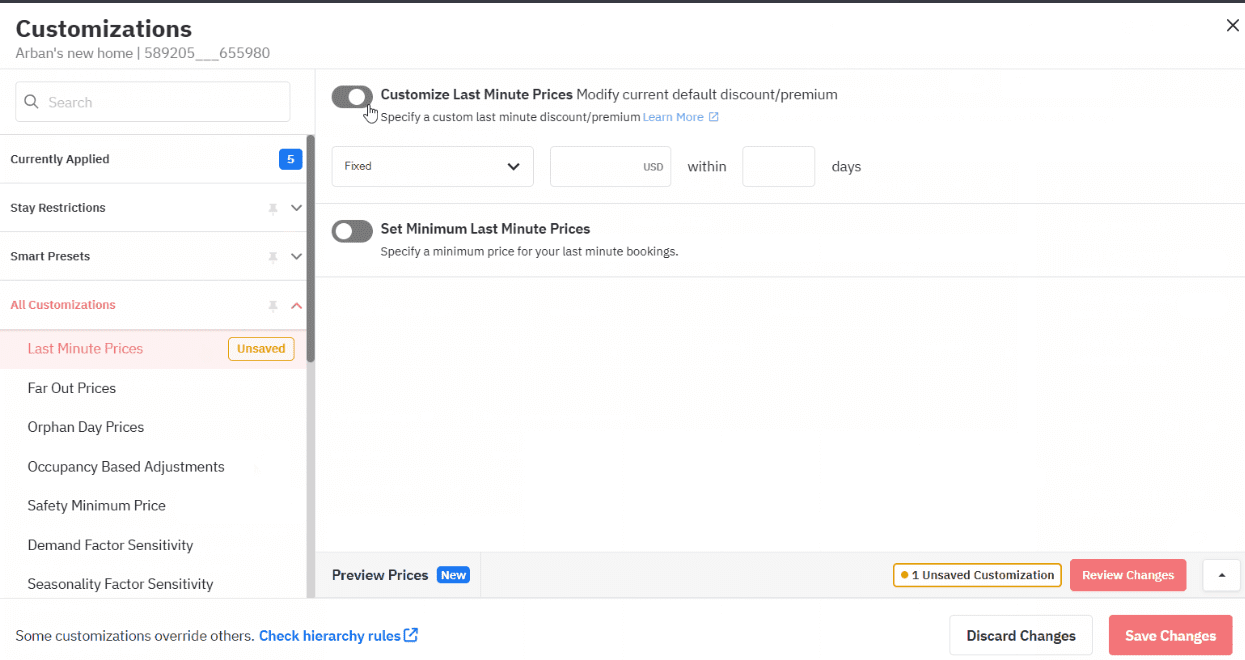
- Last-Minute Prices: By default, PriceLabs applies a gradual 30% discount over the next 15 days to capture spontaneous travelers. You can customize this to a steeper discount if your hotel relies heavily on drive-to traffic, or turn it down if you cater to corporate clients who book late anyway.
- Minimum Far-Out Price: Protect your future calendar. You can set a rule that says, “For any date more than 60 days away, do not let the price drop below $250,” even if your standard minimum price is $150.
How to Navigate This in PriceLabs: Go to the Customizations panel on your Pricing Dashboard. Under Far Out Prices, you can choose to apply a Fixed Price, a % Change on Base Price, or a % Change on Minimum Price.
4. Fine-Tuning Days of the Week and Occupancy
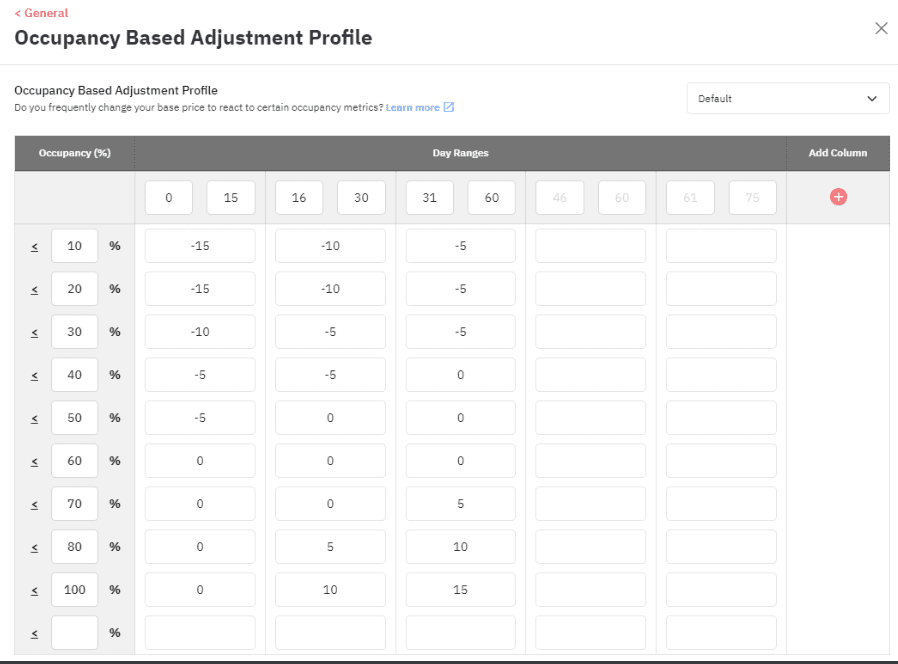
While PriceLabs’ algorithm naturally accounts for day-of-week trends and seasonality, you might spot patterns unique to your specific hotel.
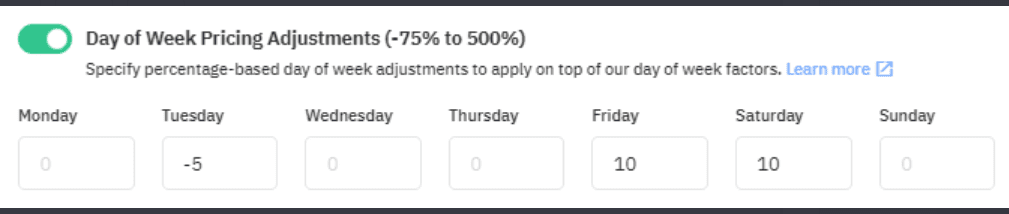
Practical Tip for Hotel Managers: If you run a corporate hotel, you might see massive demand on Tuesday and Wednesday, but a drop on Thursday. You can use Day of Week Pricing Adjustments to add a premium (e.g., +10%) specifically for mid-week stays. Or, use Occupancy-Based Adjustments to automatically trigger a 10% premium if a specific week suddenly hits 80% occupancy.
How to Navigate This in PriceLabs: Under the All Customizations tab, locate Day of Week Pricing Adjustments. Simply enter a percentage adjustment (-75% to 500%) for specific days. Remember, leaving a box blank means the system will just use the standard PriceLabs recommendation.
5. Mastering the Customization Hierarchy (Which Rule Wins?)
When you manage a multi-unit hotel or several boutique properties, you will likely use Account, Group, Subgroup, and Listing-level settings. But what happens if your Account setting says “15% Last-Minute Discount” and your Listing setting says “Fixed $100 Last-Minute Price”? PriceLabs uses a logical “bottom-up” hierarchy.
The Rule of Specificity: The most specific rule always wins. The hierarchy from strongest to weakest is:
- Listing Level (Applies only to one specific room type/property)
- Subgroup Level
- Group Level
- Account Level (Applies to everything by default)
How PriceLabs Protects Your Margins: If a specific date qualifies for multiple discounts (e.g., it is both a Last-Minute day AND an Orphan Day), PriceLabs will only apply the largest discount, preventing excessive price drops. However, if a date qualifies for multiple premiums, all premiums will be stacked and applied to optimize your revenue.
6. Breaking the Floor: Going Below Your Minimum Price
Your Minimum Price is the absolute lowest rate you are willing to accept. Usually, this is a hard floor that PriceLabs will never cross. However, there are a few specific hotel dynamic pricing customizations designed to act as exceptions to this rule, giving you flexibility when you truly need to liquidate inventory.
Customizations That Can Override Your Minimum Price:
- Date-Specific Overrides (DSO): If your minimum is $200, but you manually type in a Fixed DSO of $150 for a slow Sunday, PriceLabs will respect your manual $150 entry.
- Custom Seasonal Profiles: You can create a “Low Season” profile with a minimum price of $120, which will override your standard year-round minimum of $200 for those specific months.
- Fixed Last-Minute Prices: A percentage last-minute discount stops at your minimum price. But if you set a fixed last-minute price of $99, the system will override your minimum to hit that target.
- Pricing Offsets and Long-Term Discounts: Fixed pricing offsets and Weekly/Monthly discounts are applied after the algorithm runs, meaning they can push the final guest rate below your set minimum.
7. Visualizing Your Strategy with the Preview Prices Graph
Before pushing new rates to your PMS or OTAs, you want to be 100% sure your strategy looks correct. The Preview Prices Graph allows you to test your customizations in real-time without actually saving them. This is an incredible tool for hotel managers who need to justify pricing changes to property owners.
How to Navigate This in PriceLabs:
- Open your Pricing Dashboard and click Review Prices on a listing.
- Click Edit on the Customization panel and make your hypothetical changes.
- Click the Review Changes button.
- The graph will instantly update! You will see a Red Dashed Line (your current prices) alongside a Black Line (your new customized prices). You can even view this across a 30, 60, or 365-day timeframe.
8. Managing the Big Picture with Table View
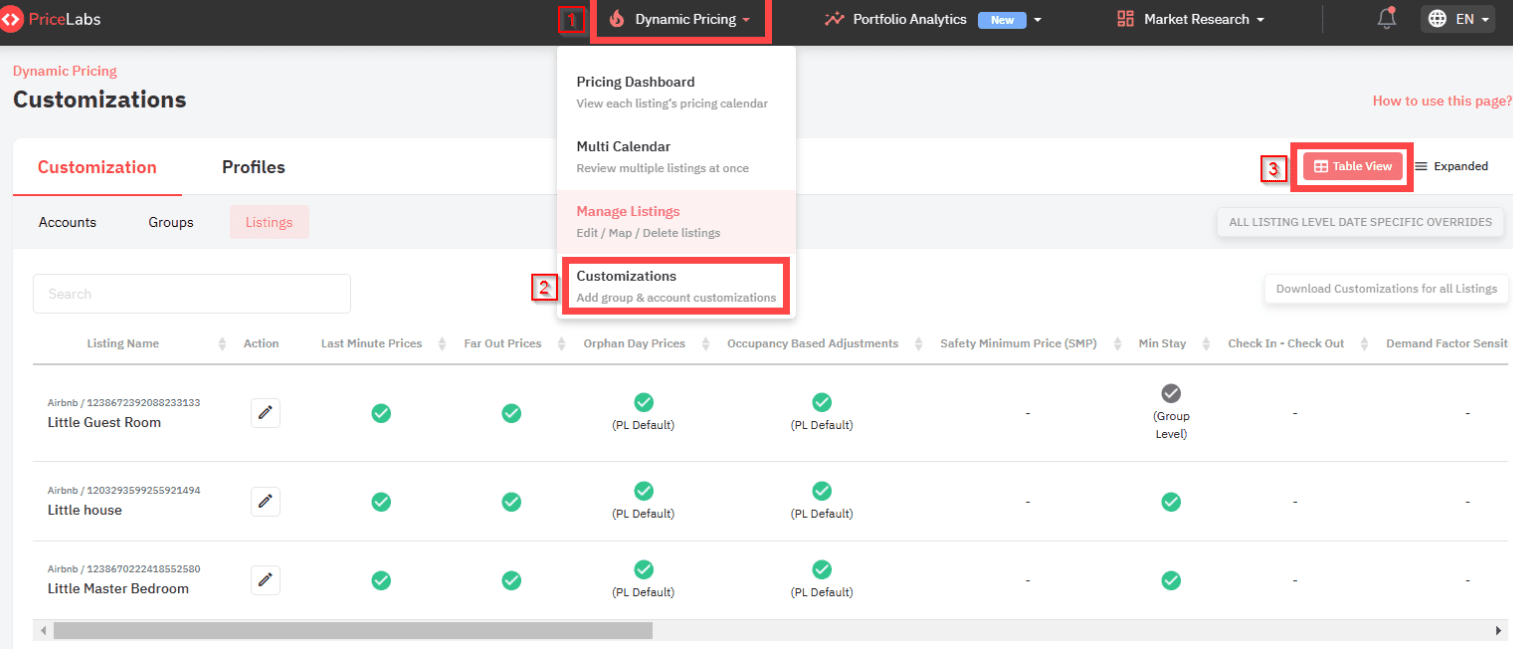
As your hotel portfolio grows, clicking into every single room type to check if a customization is turned on becomes a massive chore. The Table View solves this by putting your entire strategy on one screen.
How PriceLabs is Helpful Here: Go to Dynamic Pricing > Customizations and click Table View in the top right. Here, you will see a clear, color-coded grid.
- A Green Circle means the customization is active and working.
- A Grey Circle means the customization is turned off, or it is being overridden by a stricter rule (like a Listing rule overriding an Account rule). You can simply hover your mouse over any circle to see exactly what the rule is doing.
Way Forward
Mastering hotel dynamic pricing customizations transforms you from a reactive manager into a proactive revenue leader. By leveraging Smart Presets for a quick foundation, Orphan Day rules to plug calendar leaks, and the Preview Graph to visualize your strategies, you ensure that every single room is priced optimally for both occupancy and maximum profit. Your next step is simple: Log into your PriceLabs account, navigate to the Table View, and identify just one “Grey Circle” or missing customization that could be costing you revenue today. Test a new Orphan Gap rule on the Preview Graph, and watch your booking pace improve!
Frequently Asked Questions (FAQs)
Q: Can I change what days are considered the “weekend” for my hotel?
A: Yes. By default, PriceLabs considers Friday and Saturday as the weekend. However, using the Weekend Days customization, you can easily shift this. If you run a resort where guests typically stay Thursday through Sunday, or if your hotel is in a region where the weekend is Thursday and Friday (like the Middle East), you can customize this setting instantly.
Q: Why isn’t my Group-Level discount showing up on the calendar?
A: This is almost always due to the customization hierarchy. If you have a specific rule set at the Listing Level, it will completely override your Group-Level or Account-Level settings. Check the Table View—if you see a grey circle with a parenthesis mentioning “Listing Level,” your broader rule is being blocked by a local setting.
Q: Can I set a hard rule so my prices never go below a certain amount during the slow season?
A: Yes. You should use the Custom Seasonal Profiles feature. This allows you to set completely different Minimum, Base, and Maximum prices for a specific date range. It overrides your general year-round settings, ensuring your rates accurately reflect the seasonal reality of your specific hotel market.
Q: Will percentage-based last-minute discounts force my prices below my minimum?
A: No. If you use a percentage-based discount (like a 20% drop), PriceLabs will lower the price until it hits your predetermined Minimum Price, and it will stop there. Only Fixed last-minute prices (e.g., typing in exactly “$100”) will break through and override your Minimum Price floor.